Segments
You can configure targeting for Yandex Direct campaigns based on AppMetrica segments. To do this, save a segment in AppMetrica and add it to Yandex Audience. For more information, see How to set up retargeting.
AppMetrica collects and processes a large volume of information about apps and their users. To pull the desired data from the full set of statistics, you can create a segment. For example, you can use segments to get statistics for tablet users who installed the app in Russia, but now they are in the US.
A segment is created by using criteria to filter data. A filter can consist of one or more criteria. When selecting multiple criteria, you can use the "AND" and "OR" operators. If you select criteria in the same filter, the "OR" operator is applied. If you select criteria in different filters, the "AND" operator is applied.
You can save the resulting segments and use them when creating push campaigns.
Saving segments option is only available to users with editing rights.
Segmentation is available in all AppMetrica reports, but the number of available filters depends on the selected report. When you switch between reports, AppMetrica applies the selected filters to the data in the new report. If any of the filter criteria can't be applied, AppMetrica displays them in the Incompatible filters section.
AppMetrica has two levels of segmentation filters:
User level
With user level filters, you can set criteria for sampling data that is relevant to a specific user. This includes demographic data and various attributes of the installs such as region and tracker parameters.
The following user level filters are available:
- Event
- Demography
- Gender
- Age
- Session start
- Installation and its attributes
- Installation date
- Media source
- Tracker
- Tracker parameters
- Geography of installation
- Operating system
- App version
- App Installer
- Attribution type
- Attribution source
- Fraud assessment
- Re-engagement
- Date
- Media source
- Tracker
- Tracker parameters
- Geography
- Operating system
- App version
- Start by deeplink
- Date of start by deeplink
- Media source
- Tracker
- Parameters
- Push campaigns (events)
- Sent
- Delivered
- Opened
- Dismissed
- Control sample
- Lifetime metrics
- Days since installation
- Days since last session
- Number of sessions
- Number of crashes
- Opened push notifications
- In-App Revenue
- In-App Purchase events
- Purchase date
- Product
- Purchase amount
- Purchase currency
- Validation status
- Order ID
- Purchase geography
- Revenue payload
- Ad Revenue
- Ad Revenue date
- Purchase amount
- Ad Revenue currency
- Geography of Ad Revenue
- Ad type
- Ad network
- Ad unit ID
- Ad unit name
- Ad placement ID
- Ad placement name
- Ad precision
- Ad revenue payload
- Current value
- Geography
- Application
- Device
- Profile attributes
For User Acquisition, Remarketing, Cohort analysis, Retention analysis, and Profiles reports, only user filters are available.
Report level
With report level filters, you can select data specific to the report. For example, in the Audience report (which is based on sessions) you can select an event, user location, and the device type used in the session during the specified period, as well as app and network parameters.
The following reports have report level filters:
- Events report.
- Sessions report.
- Report on push campaigns.
- Crash and error report.
Values in dimensions and segments
Some properties can be used to create user level segments, to create report level segments, and to group data within the report into dimensions.
-
If you create a user level segment based on the current value of a property, the report will display data for users who match the specified property value at the time of report generation.
For example, in the Events report, the user segment Current value → Application → Version =
1.10will include users who currently have the app version1.10installed. In this case, the report displays all events for these users that occurred during the selected period, even those sent from other app versions.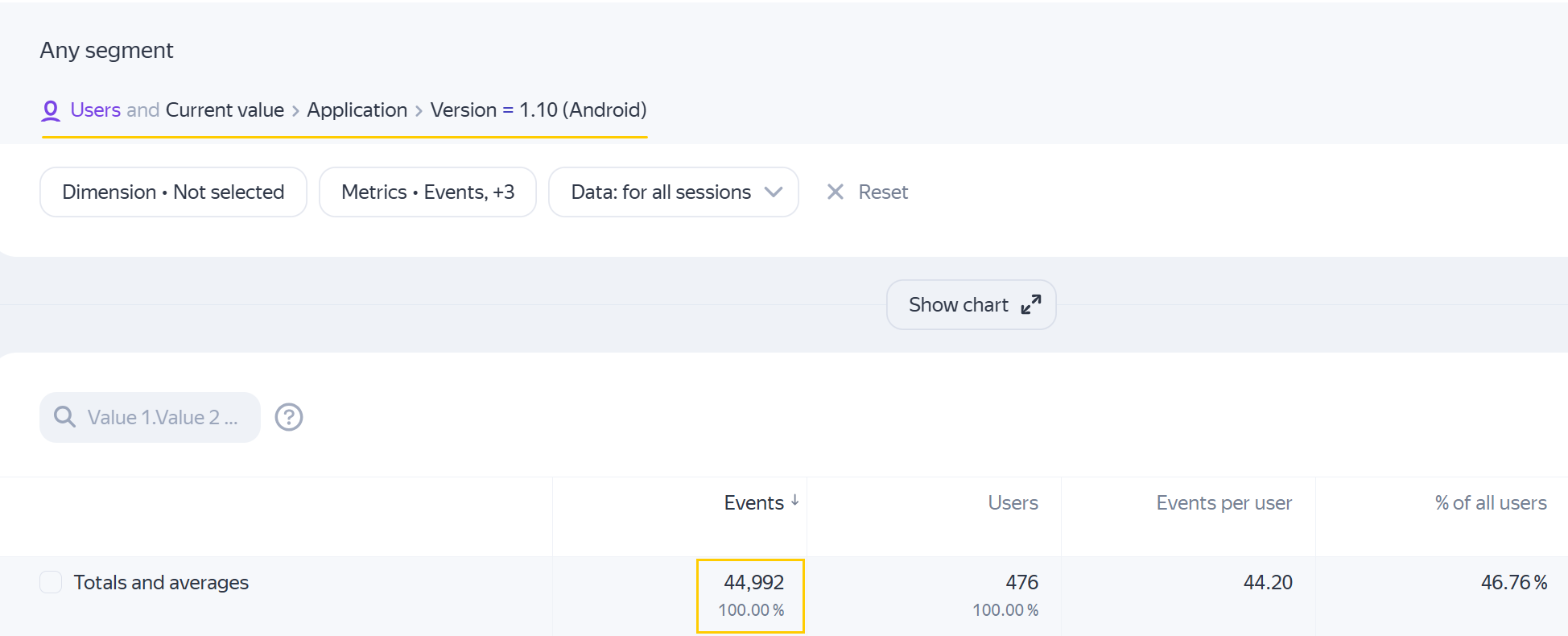
-
When segmenting data at the report level or using a property in a dimension, the report displays data for the property values used to collect that data.
Continuing with the above example, if you create a report segment for Application → Version =
1.10events, it will include events that occurred when the app version was1.10.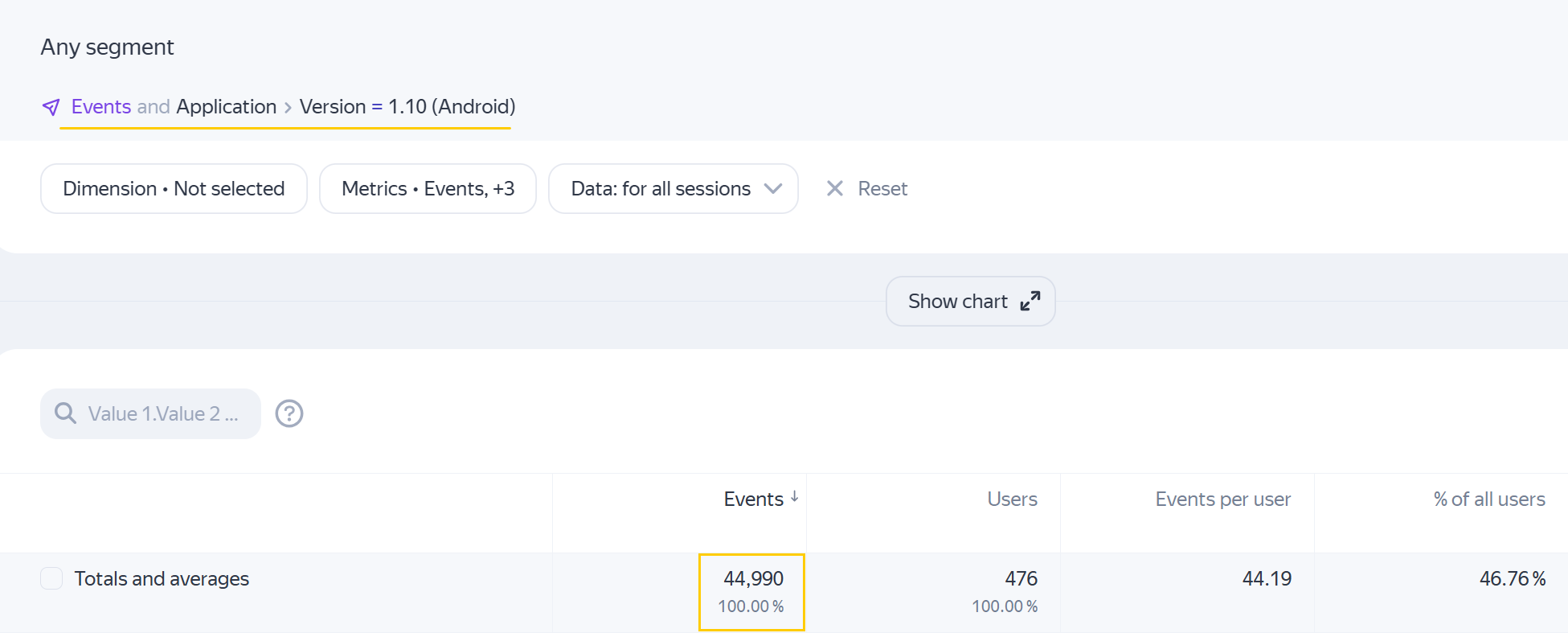
If you have the Application → Version =
1.10dimension set up in the report, it also will include those events that occurred when the app version was1.10.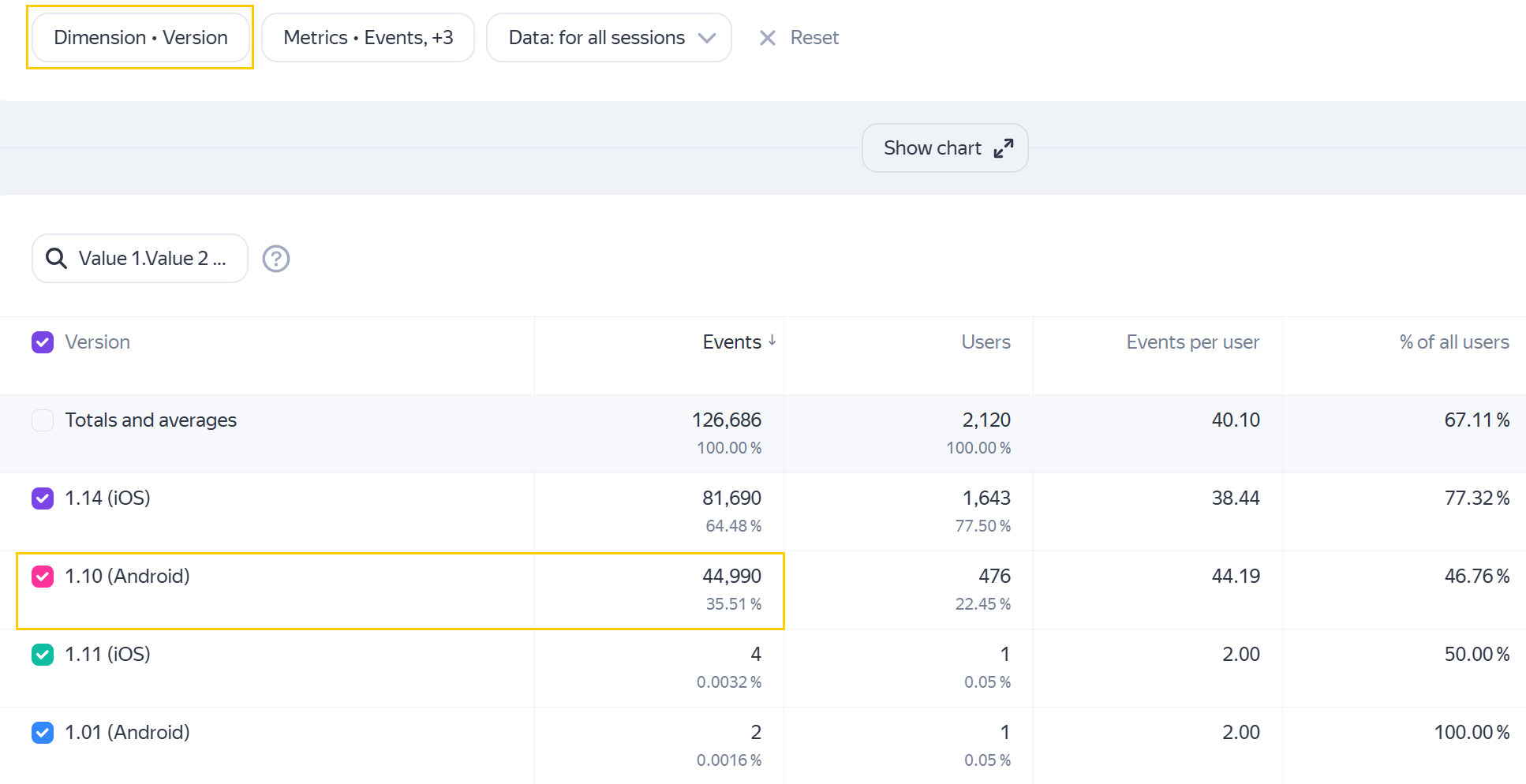
Learn more
If you didn't find the answer you were looking for, you can use the feedback form to submit your question. Please describe the problem in as much detail as possible. Attach a screenshot if possible.
A subset of users filtered by a formal attribute (for example, by the OS name).