Interface overview
In the AppMetrica dashboard, you can view app statistics, evaluate ad campaigns, work with audiences, and set up data collection. Here's a quick guide to finding the main tools and choosing the right section for your task
Organization and app
There are two levels in the dashboard.
App is where the main work is done: reports, tracking, push campaigns, and app-specific settings.
Organization groups together the company's apps. At this level, you'll find summary statistics, a list of apps, organization access permissions, and billing.
The user whose login was used to register a personal account becomes the organization owner. You can't change the organization owner, but you can transfer apps to a different organization if you need to. Learn more about access management.
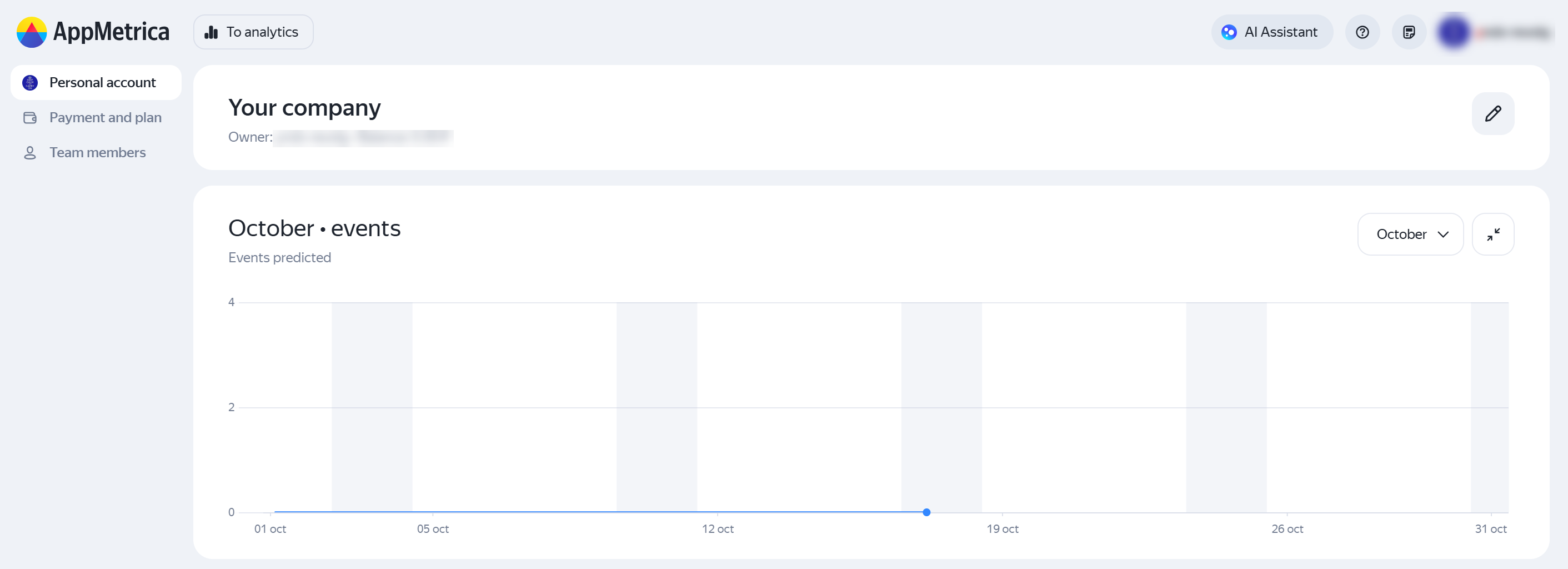
To go to the organization level, click To organization at the top of the screen. The section is available only to the organization owner and users who have been granted access. If the button isn't there, check your permissions with the owner or the employee who manages access.

Organization access and app permissions are granted separately. If you need to work with analytics and manage billing, you'll need permissions at both levels Learn more about access management.
What's at the organization level
At the organization level, you can:
- View aggregate statistics for custom events, the Data Stream API, and the antifraud system across all apps.
- Find apps that are part of the organization.
- View the list of employees with access to the organization.
- Open Payment and plan to enter your details, activate paid tools, and top up your balance.
The ability to change settings depends on your access level. For example, you need edit access at the organization level to activate a paid plan. For step-by-step instructions, see Paid tools.
App's top bar
At the top left is a dropdown list of apps. It lets you switch between apps you have access to. If there are many of them, organize them into folders in Settings → Main — this will make it easier to find what you need.
At the top right, you'll find tools for navigating the service and getting assistance.

| Tool | When to use it |
|---|---|
| Search | You know the name of a metric, report, or setting and want to quickly find it in your account. To learn more, see Search and hints |
| AI assistant | You want to ask a question about the service or app data, find the right report, or discuss a hypothesis. For more information, see AI assistant |
| Useful links | You're looking for documentation, support, the blog, a product changelog, or a beginner's guide. |
| Troubleshooting | You have an idea or suggestion for the service. You can send it via the Suggest an improvement form. |
Side menu
The main sections are on the left. They are listed below in the same order as in the menu.
Overview
Overview is the home page with widgets showing key metrics. It helps you quickly see what's happening with the app before going into detailed reports. You can change the set of widgets, their order, and settings.
Overview is a shared page for the team. Other users with access to the app will see changes to titles and widgets. Users with Read only access can view the overview, and those with Read/edit access can edit it. For more information, see Overview.
Workspaces
Workspaces are collections of widgets with charts and tables. You can use ready-made workspaces or create your own set of metrics for a specific task, such as monetization analysis. For more information, see Workspaces.
Insights
Insights help you spot significant changes in metrics. AppMetrica analyzes data and shows notifications in the interface. In this section, you can view insights for the selected period and click the link in an insight to open the related report. For more information, see Insights.
Reports
In the Reports section, you'll find statistics on app usage. Reports are grouped by category: marketing, product, monetization, technology, crashes, and errors.
There are other ways to find the report you need: an alphabetical list of all reports, saved reports, and a list of popular ones. The latter is generated separately for each user. If you don't know the report name, try searching by metric. For more information, see Reports.
Profiles
Profiles let you move from overall statistics to individual app user data, including profile attributes and event history. For more information, see Profile list.
Tracking
Tracking involves creating and setting up trackers for ad campaigns. Tracking links help connect app installs and users' subsequent actions with traffic sources. Start with the article about tracking.
Push campaigns
Push campaigns — create and send push notifications to your target audience. To use push campaigns, you need to integrate the AppMetrica Push SDK and configure data collection for sending notifications. For more information, see Push campaigns.
Varioqub
Varioqub — A/B experiments and flag configuration for managing changes in the app.
Anti-fraud solution
Anti-fraud — assessing ad traffic using FraudScore to detect fraudulent activity.
Data export
Data export lets you export data from AppMetrica to a file. This data may include app installs, events, or sent postbacks. For instructions, see Exporting data to a file.
If you need to automatically load data into your own storage or BI system, see Working with the API.
Settings
This section contains configuration options for the app and individual tools: API keys, access permissions for colleagues and agencies, destination URLs and deeplinks, events, test devices, predictions, and more. Detailed instructions are available in the current Service settings section.
Learn more
- Search and hints — how to find the tool you need and get explanations right in the dashboard.
- Terms and definitions — if you come across an unfamiliar concept.
If you didn't find the answer you were looking for, you can use the feedback form to submit your question. Please describe the problem in as much detail as possible. Attach a screenshot if possible.