---
metadata:
- name: generator
content: Diplodoc Platform v5.50.6
alternate:
- https://appmetrica.yandex.com/docs/en/sdk/android/analytics/android-operations.md
- https://appmetrica.yandex.com/docs/ru/sdk/android/analytics/android-operations.md
---
> **Documentation Index:** Fetch the complete configuration index at https://appmetrica.yandex.com/docs/en/llms.txt
# Usage examples
## Library initialization with the extended configuration {#initialize}
The extended configuration lets you enable/disable logging, set session timeout, pass parameters for [tracking pre-installed apps](https://appmetrica.yandex.com/docs/en/mobile-tracking/preinstalled-app-attr.md), and more.
Extended configuration settings take effect immediately upon library initialization.
To initialize the library with the extended startup configuration, create an instance of the `AppMetricaConfig` class with appropriate settings and activate the library using the `AppMetrica.activate(Context context, AppMetricaConfig config)` method.
{% list tabs group=instructions %}
- Kotlin
```kotlin translate=no
class YourApplication : Application() {
override fun onCreate() {
super.onCreate()
// Creating an extended library configuration.
val config = AppMetricaConfig.newConfigBuilder(API_KEY)
// Setting up the configuration. For example, to enable logging.
.withLogs()
// ...
.build()
// Initializing the AppMetrica SDK.
AppMetrica.activate(applicationContext, config)
// Automatic tracking of user activity.
AppMetrica.enableActivityAutoTracking(this)
}
}
```
- Java
```java translate=no
public class YourApplication extends Application {
@Override
public void onCreate() {
super.onCreate();
// Creating an extended library configuration.
AppMetricaConfig config = AppMetricaConfig.newConfigBuilder(API_KEY)
// Setting up the configuration. For example, to enable logging.
.withLogs()
// ...
.build();
// Initializing the AppMetrica SDK.
AppMetrica.activate(getApplicationContext(), config);
// Automatic tracking of user activity.
AppMetrica.enableActivityAutoTracking(this);
}
}
```
{% endlist %}
To configure the library while the application is running, use the `AppMetrica` class methods.
## Sending statistics to an additional API key {#reporter-different-apikey}
Sending data to an additional API key allows you to collect own statistics for these API keys. You can use this to control access to information for other users. For example, to provide access to statistics for analysts you can duplicate sending marketing data for the additional API key. Thus they will only have access to the information they need.
To send data to an additional API key, you must use reporters. Just like for the main API key, you can set up an extended startup configuration for a reporter, send events, profile information, and data about in-app purchases. The reporter can work without the AppMetrica SDK initialization.
### Step 1. (Optional) Initialize a reporter with an extended configuration {#reporter-different-apikey-initialize}
To initialize a reporter with the extended configuration, create a `ReporterConfig` class object with the settings you need and activate the reporter using the `AppMetrica.activateReporter(Context context, ReporterConfig config)` method. This configuration is used for a reporter with the specified API key. You can set up your own configuration for each additional API key.
{% note alert "" %}
The reporter with an extended configuration should be initialized before the first call to the reporter. Otherwise, the reporter will be initialized without a configuration.
{% endnote %}
{% list tabs group=instructions %}
- Kotlin
```kotlin translate=no
// Creating extended configuration of the reporter.
// To create it, pass a ANOTHER_API_KEY that is different from the app's API_KEY.
val reporterConfig = ReporterConfig.newConfigBuilder(ANOTHER_API_KEY)
// Setting up the configuration. For example, to enable logging.
.withLogs()
// ...
.build()
// Initializing a reporter.
AppMetrica.activateReporter(applicationContext, reporterConfig)
```
- Java
```java translate=no
// Creating extended configuration of the reporter.
// To create it, pass a ANOTHER_API_KEY that is different from the app's API_KEY.
ReporterConfig reporterConfig = ReporterConfig.newConfigBuilder(ANOTHER_API_KEY)
// Setting up the configuration. For example, to enable logging.
.withLogs()
// ...
.build();
// Initializing a reporter.
AppMetrica.activateReporter(getApplicationContext(), reporterConfig);
```
{% endlist %}
### Step 2. Configure sending data using a reporter {#reporter-different-apikey-send}
To send data using a reporter, get an object that implements the `IReporter` interface by the `AppMetrica.getReporter(Context context, String apiKey)` method and use the interface methods to send reports. If the reporter was not initialized with the extended configuration, calling this method will initialize the reporter for the specified API key.
Example of sending an event:
{% list tabs group=instructions %}
- Kotlin
```kotlin translate=no
AppMetrica.getReporter(applicationContext, ANOTHER_API_KEY).reportEvent("Updates installed")
```
- Java
```java translate=no
AppMetrica.getReporter(getApplicationContext(), ANOTHER_API_KEY).reportEvent("Updates installed");
```
{% endlist %}
For correct tracking, manually configure the reporters to send events about the start and the pause of the session for each reporter. Use the `resumeSession()` and `pauseSession()` methods in the `IReporter` interface when implementing `onResume()` and `onPause()` for your Activity:
{% list tabs group=instructions %}
- Kotlin
```kotlin translate=no
public class YourActivity : Activity() {
override fun onResume() {
super.onResume()
AppMetrica.getReporter(applicationContext, ANOTHER_API_KEY).resumeSession()
}
override fun onPause() {
AppMetrica.getReporter(applicationContext, ANOTHER_API_KEY).pauseSession()
super.onPause()
}
}
```
- Java
```java translate=no
public class YourActivity extends Activity {
@Override
protected void onResume() {
super.onResume();
AppMetrica.getReporter(getApplicationContext(), ANOTHER_API_KEY).resumeSession();
}
@Override
protected void onPause() {
AppMetrica.getReporter(getApplicationContext(), ANOTHER_API_KEY).pauseSession();
super.onPause();
}
}
```
{% endlist %}
## Tracking app crashes {#set-report-crash}
Reports on app crashes are sent by default.
To disable automatic monitoring, initialize the library with the configuration in which sending crashes is disabled. To do this, pass the `false` value to the `withLocationTracking(boolean enabled)` method when creating the extended library configuration.
{% list tabs group=instructions %}
- Kotlin
```kotlin translate=no
// Creating an extended library configuration.
val config = AppMetrica.newConfigBuilder(API_KEY)
// Disabling the data sending about the app crashes.
.withCrashReporting(false)
.build()
// Initializing the AppMetrica SDK.
AppMetrica.activate(applicationContext, config)
```
- Java
```java translate=no
// Creating an extended library configuration.
AppMetricaConfig config = AppMetricaConfig.newConfigBuilder(API_KEY)
// Disabling the data sending about the app crashes.
.withCrashReporting(false)
.build();
// Initializing the AppMetrica SDK.
AppMetrica.activate(getApplicationContext(), config);
```
{% endlist %}
If automatic monitoring is disabled, you can manually [submit information about crashes](#report-unhandled).
## Manually monitoring app crashes {#report-unhandled}
Reports on app crashes are sent by default. To prevent event duplication when sending crashes manually, disable the [automatic monitoring of app crashes](#set-peropt-crash).
To send crash data manually, use the `AppMetrica.reportUnhandledException(Throwable exception)` method.
{% list tabs group=instructions %}
- Kotlin
```kotlin translate=no
val previousUncaughtExceptionHandler = Thread.getDefaultUncaughtExceptionHandler()
// Creating a new handler.
val uncaughtExceptionHandler = Thread.UncaughtExceptionHandler { thread, exception ->
try {
// Sending a message about an app crash to the AppMetrica server.
AppMetrica.reportUnhandledException(exception)
} finally {
// Sending a message about an app crash to the system handler.
previousUncaughtExceptionHandler?.uncaughtException(thread, exception)
}
}
// Setting the default handler.
Thread.setDefaultUncaughtExceptionHandler(uncaughtExceptionHandler)
```
- Java
```java translate=no
final Thread.UncaughtExceptionHandler previousUncaughtExceptionHandler = Thread.getDefaultUncaughtExceptionHandler();
// Creating a new handler.
Thread.UncaughtExceptionHandler uncaughtExceptionHandler = new Thread.UncaughtExceptionHandler() {
@Override
public void uncaughtException(Thread thread, Throwable exception) {
try {
// Sending a message about an app crash to the AppMetrica server.
AppMetrica.reportUnhandledException(exception);
} finally {
// Sending a message about an app crash to the system handler.
if (previousUncaughtExceptionHandler != null) {
previousUncaughtExceptionHandler.uncaughtException(thread, exception);
}
}
}
};
// Setting the default handler.
Thread.setDefaultUncaughtExceptionHandler(uncaughtExceptionHandler);
```
{% endlist %}
## Monitoring native app crashes {#native-crashes}
Reports are sent automatically on native app crashes if the library's SO files are added to the project.
By default, SO files are omitted.
To add them, configure the [AppMetrica Gradle Plugin](https://appmetrica.yandex.com/docs/en/sdk/android/analytics/android-gradle-plugin.md) as follows:
{% list tabs %}
- build.gradle.kts
```kotlin translate=no
appmetrica {
...
ndk {
enable = { applicationVariant -> true }
}
}
```
- build.gradle
```groovy translate=no
appmetrica {
...
ndk {
enable = { applicationVariant -> true }
}
}
```
{% endlist %}
The plugin will automatically add the appropriate dependencies.
The library added by the plugin contains SO files for every platform (arm, armv7, mips, x86).
Use [abi splits](https://developer.android.com/studio/build/configure-apk-splits#configure-abi-split) to exclude unnecessary SO files.
{% cut "If you don't use Gradle" %}
[Download](https://repo1.maven.org/maven2/io/appmetrica/analytics/analytics-ndk-crashes/3.1.0/analytics-ndk-crashes-3.1.0.aar) and add the library to your project.
{% endcut %}
To disable automatic monitoring, initialize the library with the configuration in which sending crashes is disabled.
To do this, pass the `false` value to the `withNativeCrashReporting(boolean enabled)` method when creating the extended library configuration.
{% list tabs group=instructions %}
- Kotlin
```kotlin translate=no
// Creating an extended library configuration.
val config = AppMetricaConfig.newConfigBuilder(API_KEY)
// Disabling the data sending about the native app crashes.
.withNativeCrashReporting(false)
.build()
// Initializing the AppMetrica SDK.
AppMetrica.activate(applicationContext, config)
```
- Java
```java translate=no
// Creating an extended library configuration.
AppMetricaConfig config = AppMetricaConfig.newConfigBuilder(API_KEY)
// Disabling the data sending about the native app crashes.
.withNativeCrashReporting(false)
.build();
// Initializing the AppMetrica SDK.
AppMetrica.activate(getApplicationContext(), config);
```
{% endlist %}
[Learn more about native code](https://developer.android.com/tools/sdk/ndk/index.html#Using).
## Using the library to send advertising identifiers {#track-adv-identifiers}
{% note info "" %}
Advertising identifiers are sent with events by default.
For more information about managing advertising identifiers, see the [Getting advertising IDs](https://appmetrica.yandex.com/docs/en/sdk/android/get-ad-id.md).
{% endnote %}
If you want to disable the collection of tracking identifiers (for example, while waiting for user consent), you can do so during the library initialization process. To do this, pass the `false` value to the `withAdvIdentifiersTracking (boolean enabled)` method when creating the configuration.
{% list tabs group=instructions %}
- Kotlin
```kotlin translate=no
// Creating an extended library configuration.
val config = AppMetricaConfig.newConfigBuilder(API_KEY)
// Disabling advertising identifiers tracking
.withAdvIdentifiersTracking(false)
.build()
// Initializing the AppMetrica SDK.
AppMetrica.activate(applicationContext, config)
```
- Java
```java translate=no
// Creating an extended library configuration.
AppMetricaConfig config = AppMetricaConfig.newConfigBuilder(API_KEY)
// Disabling advertising identifiers tracking
.withAdvIdentifiersTracking(false)
.build();
// Initializing the AppMetrica SDK.
AppMetrica.activate(getApplicationContext(), config);
```
{% endlist %}
After obtaining user consent, we recommend that you enable the collection of advertising identifiers while the application is running. To do this, pass `true` to the `AppMetrica.setAdvIdentifiersTracking(boolean enabled)` method.
{% list tabs group=instructions %}
- Kotlin
```kotlin translate=no
// Enabling advertising identifiers tracking
AppMetrica.setAdvIdentifiersTracking(true)
```
- Java
```java translate=no
// Enabling advertising identifiers tracking
AppMetrica.setAdvIdentifiersTracking(true);
```
{% endlist %}
## Using the library to send device location {#track-location}
{% note info "" %}
Sending device location is disabled by default.
Starting with version 5.0.0, the AppMetrica SDK is initialized with `locationTracking` disabled by default.
{% endnote %}
To enable sending it, initialize the library with the configuration where sending device location data is enabled. To do this, pass the `true` value to the `withLocationTracking(boolean enabled)` method when creating an extended library configuration.
{% list tabs group=instructions %}
- Kotlin
```kotlin translate=no
// Creating an extended library configuration.
val config = AppMetricaConfig.newConfigBuilder(API_KEY)
// Enabling the data sending about the device location.
.withLocationTracking(true)
.build()
// Initializing the AppMetrica SDK.
AppMetrica.activate(applicationContext, config)
```
- Java
```java translate=no
// Creating an extended library configuration.
AppMetricaConfig config = AppMetricaConfig.newConfigBuilder(API_KEY)
// Enabling the data sending about the device location.
.withLocationTracking(true)
.build();
// Initializing the AppMetrica SDK.
AppMetrica.activate(getApplicationContext(), config);
```
{% endlist %}
To enable sending at app runtime, use the `AppMetrica.setLocationTracking(boolean enabled)` method:
{% list tabs group=instructions %}
- Kotlin
```kotlin translate=no
AppMetrica.setLocationTracking(true)
```
- Java
```java translate=no
AppMetrica.setLocationTracking(true);
```
{% endlist %}
For more precise locations, add one of the following permissions to the AndroidManifest.xml file:
- [android.permission.ACCESS_COARSE_LOCATION](https://developer.android.com/reference/android/Manifest.permission.html#ACCESS_COARSE_LOCATION) — For approximate determination.
- [android.permission.ACCESS_FINE_LOCATION](https://developer.android.com/reference/android/Manifest.permission.html#ACCESS_FINE_LOCATION) — For accurate determination.
For example:
```xml translate=no
...
```
## Setting location manually {#location-manual}
Before sending custom information about the device location, make sure that reporting is enabled.
The library determines the device location on its own. To send custom data on device location, pass an instance of the [android.location.Location](https://developer.android.com/reference/android/location/Location) class to the `AppMetrica.setLocation(Location Location)` method.
{% list tabs group=instructions %}
- Kotlin
```kotlin translate=no
// Determining the location.
val currentLocation = ...
// Setting your own location information of the device.
AppMetrica.setLocation(currentLocation)
```
- Java
```java translate=no
// Determining the location.
Location currentLocation = ...;
// Setting your own location information of the device.
AppMetrica.setLocation(currentLocation);
```
{% endlist %}
To send your own device location information using the startup configuration, pass the `android.location.Location` instance to the `withLocation(Location Location)` method when creating the extended library configuration.
{% list tabs group=instructions %}
- Kotlin
```kotlin translate=no
// Determining the location.
val currentLocation = ...
// Creating an extended library configuration.
AppMetricaConfig config = AppMetricaConfig.newConfigBuilder(API_KEY)
// Set your own location information of the device.
.withLocation(currentLocation)
.build()
// Initializing the AppMetrica SDK.
AppMetrica.activate(applicationContext, config)
```
- Java
```java translate=no
// Determining the location.
Location currentLocation = ...;
// Creating an extended library configuration.
AppMetricaConfig config = AppMetricaConfig.newConfigBuilder(API_KEY)
// Set your own location information of the device.
.withLocation(currentLocation)
.build();
// Initializing the AppMetrica SDK.
AppMetrica.activate(getApplicationContext(), config);
```
{% endlist %}
To resume location detection by the library, pass the `null` value to the `AppMetrica.setLocation(Location location)` method and configure [delivery of device location data](#track-location).
{% list tabs group=instructions %}
- Kotlin
```kotlin translate=no
AppMetrica.setLocation(null)
```
- Java
```java translate=no
AppMetrica.setLocation(null);
```
{% endlist %}
## Sending a custom event {#report-event}
To send a custom event without nested parameters, pass a short name or description of the event to the `AppMetrica.reportEvent(String eventName)` method:
{% list tabs group=instructions %}
- Kotlin
```kotlin translate=no
AppMetrica.reportEvent("Updates installed")
```
- Java
```java translate=no
AppMetrica.reportEvent("Updates installed");
```
{% endlist %}
## Sending a custom event with nested parameters {#report-event-params}
The AppMetrica SDK allows you to send your own events with nested parameters that can be set in the JSON format or as a set of attributes (Map).
**JSON**
To pass nested event parameters in the JSON format, use the `AppMetrica.reportEvent(String eventName, String jsonValue)` method:
{% list tabs group=instructions %}
- Kotlin
```kotlin translate=no
val eventParameters = """{"name":"Alice", "age":"18"}"""
AppMetrica.reportEvent("New person", eventParameters)
```
- Java
```java translate=no
String eventParameters = "{\"name\":\"Alice\", \"age\":\"18\"}";
AppMetrica.reportEvent("New person", eventParameters);
```
{% endlist %}
**Map**
To send a custom event message as a set of attributes (Map), use the `AppMetrica.reportEvent(String eventName, Map attributes)` method:
{% list tabs group=instructions %}
- Kotlin
```kotlin translate=no
val eventParameters = mapOf("name" to "Alice", "age" to 18)
AppMetrica.reportEvent("New person", eventParameters)
```
- Java
```java translate=no
Map eventParameters = new HashMap();
eventParameters.put("name", "Alice");
eventParameters.put("age", 18);
AppMetrica.reportEvent("New person", eventParameters);
```
{% endlist %}
The AppMetrica web interface displays up to five nesting levels for events. So if an event has six or more levels, only the top five are shown in the report. You can use the [Reporting API](https://appmetrica.yandex.com/docs/en/mobile-api/stat/intro.md) to export up to ten levels.
For more information about events, see [Events](https://appmetrica.yandex.com/docs/en/data-collection/about-events.md).
## Sending an event from the WebView's JavaScript code{#js-event}
The AppMetrica SDK lets you send client events from JavaScript code. Initialize the sending by calling the `initWebViewReporting` method:
{% list tabs group=instructions %}
- Kotlin
```kotlin translate=no
val webView = findViewById(R.id.myWebView)
// do your initialization here
webView.settings.javaScriptEnabled = true
AppMetrica.initWebViewReporting(webView)
webView.loadUrl(myURL)
```
- Java
```java translate=no
WebView webView = (WebView) findViewById(R.id.myWebView);
// do your initialization here
webView.getSettings().setJavaScriptEnabled(true);
AppMetrica.initWebViewReporting(webView);
webView.loadUrl(myURL);
```
{% endlist %}
Invoke the `initWebViewReporting` method after calling the `setJavaScriptEnabled` method but before calling loadUrl.
To send an event from JavaScript code, use the `reportEvent(name, value)` method in the AppMetrica interface:
**Javascript**
```javascript translate=no
function buttonClicked() {
AppMetrica.reportEvent('Button clicked!', '{}');
}
```
Arguments of the `reportEvent` method:
- `name`: A string. Can't be null or empty.
- `value`: A JSON string. Can be null.
## Sending a custom error message {#send-report-error}
To send your own error message, use the following methods:
- `AppMetrica.reportError(String message, Throwable error)`
- `AppMetrica.reportError(String groupIdentifier, String message)`
- `AppMetrica.reportError(String groupIdentifier, String message, Throwable error)`
{% cut "Example with groupIdentifier" %}
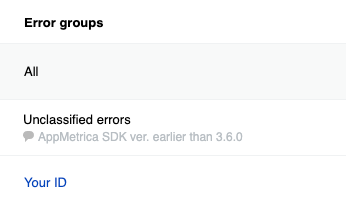
If you send errors using methods with groupIdentifier, they are grouped by ID.
{% list tabs group=instructions %}
- Kotlin
```kotlin translate=no
try {
"00xffWr0ng".toInt()
} catch (error: Throwable) {
AppMetrica.reportError("Your ID", "Error while parsing some integer number", error)
}
```
- Java
```java translate=no
try {
Integer.valueOf("00xffWr0ng");
} catch (Throwable error) {
AppMetrica.reportError("Your ID", "Error while parsing some integer number", error);
}
```
{% endlist %}
Don't use variable values as grouping IDs. Otherwise, the number of groups increases and it becomes difficult to analyze them.
{style="border: solid 1px #cccccc; max-width: 800px;"}
{% endcut %}
{% cut "Example with message" %}
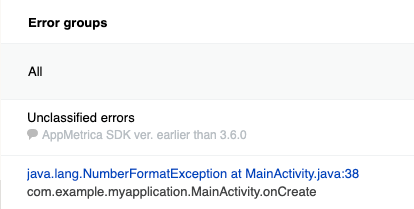
If errors are sent using the `AppMetrica.reportError(String message, Throwable error)` method, they are grouped by [stack trace](https://en.wikipedia.org/wiki/Stack_trace).
{% list tabs group=instructions %}
- Kotlin
```kotlin translate=no
try {
"00xffWr0ng".toInt()
} catch (error: Throwable) {
AppMetrica.reportError("Error while parsing some integer number", error)
}
```
- Java
```java translate=no
try {
Integer.valueOf("00xffWr0ng");
} catch (Throwable error) {
AppMetrica.reportError("Error while parsing some integer number", error);
}
```
{% endlist %}
{style="border: solid 1px #cccccc; max-width: 800px;"}
{% endcut %}
## Sending events from the buffer {#send-events-buffer}
AppMetrica SDK does not send an event immediately after it occurred. The library stores event data in the buffer. The `SendEventsBuffer` method initiates sending data from the buffer and flushes it. Use the method to force sending stored events after passing important checkpoints of user scenarios.
{% list tabs group=instructions %}
- Kotlin
```kotlin translate=no
AppMetrica.sendEventsBuffer()
```
- Java
```java translate=no
AppMetrica.sendEventsBuffer();
```
{% endlist %}
{% note alert "" %}
If you use this method frequently, this may result in increased internet traffic and energy consumption.
{% endnote %}
## Sending ProfileId {#send-profile-id}
If you know the user profile ID before initializing the AppMetrica SDK, pass it before initialization (`setUserProfileID`) or during initialization with the extended configuration (`withUserProfileID`).
Otherwise, a user profile is created with the ID `appmetrica_device_id`.
{% note warning "" %}
AppMetrica doesn't display `predefined attributes` in the web interface if [ProfieId](https://appmetrica.yandex.com/docs/en/data-collection/profile-attributes.md#pre-defined) sending isn't configured.
{% endnote %}
You can update `ProfileId` at any time by calling `setUserProfileID`:
{% list tabs group=instructions %}
- Kotlin
```kotlin translate=no
AppMetrica.setUserProfileID("id")
```
- Java
```java translate=no
AppMetrica.setUserProfileID("id");
```
{% endlist %}
## Sending profile attributes {#send-attribute-profile}
To send profile attributes, pass the required attributes to the instance of the `UserProfile` class and send the instance using the `AppMetrica.reportUserProfile(UserProfile profile)` method. To create profile attributes, use methods of the `Attribute` class.
{% list tabs group=instructions %}
- Kotlin
```kotlin translate=no
// Creating the UserProfile instance.
val userProfile = UserProfile.newBuilder()
// Updating predefined attributes.
.apply(Attribute.name().withValue("John"))
.apply(Attribute.gender().withValue(GenderAttribute.Gender.MALE))
.apply(Attribute.birthDate().withAge(24))
.apply(Attribute.notificationsEnabled().withValue(false))
// Updating custom attributes.
.apply(Attribute.customString("string_attribute").withValue("string"))
.apply(Attribute.customNumber("number_attribute").withValue(55.0))
.apply(Attribute.customCounter("counter_attribute").withDelta(1.0))
.build()
// Setting the ProfileID using the method of the AppMetrica class.
AppMetrica.setUserProfileID("id")
// Sending the UserProfile instance.
AppMetrica.reportUserProfile(userProfile)
```
- Java
```java translate=no
// Creating the UserProfile instance.
UserProfile userProfile = UserProfile.newBuilder()
// Updating predefined attributes.
.apply(Attribute.name().withValue("John"))
.apply(Attribute.gender().withValue(GenderAttribute.Gender.MALE))
.apply(Attribute.birthDate().withAge(24))
.apply(Attribute.notificationsEnabled().withValue(false))
// Updating custom attributes.
.apply(Attribute.customString("string_attribute").withValue("string"))
.apply(Attribute.customNumber("number_attribute").withValue(55))
.apply(Attribute.customCounter("counter_attribute").withDelta(1))
.build();
// Setting the ProfileID using the method of the AppMetrica class.
AppMetrica.setUserProfileID("id");
// Sending the UserProfile instance.
AppMetrica.reportUserProfile(userProfile);
```
{% endlist %}
## Sending user profile attributes with first-party data {#send-attribute-profile-1pd}
The first-party data includes phone numbers, email addresses, and a Telegram account login. When sending this data, normalization and hashing occurs using SHA-256, meaning the data is not transmitted to the server and cannot be recovered from the sent hashes.
{% list tabs group=instructions %}
- Kotlin
```kotlin translate=no
// Creating the UserProfile instance.
val userProfile = UserProfile.newBuilder()
// Phone numbers
.apply(Attribute.phoneHash().withPhoneValues("+0123456789", "+9876543210"))
// Emails
.apply(Attribute.emailHash().withEmailValues("firstemailexample@appmetrica.io","secondemailexample@appmetrica.io"))
// Telegram login
.apply(Attribute.telegramLoginHash().withTelegramLoginValues("first example login", "second example login"))
.build()
// Sending the UserProfile instance.
AppMetrica.reportUserProfile(userProfile)
```
- Java
```java translate=no
// Creating the UserProfile instance.
UserProfile userProfile = UserProfile.newBuilder()
// Phone numbers
.apply(Attribute.phoneHash().withPhoneValues("+0123456789", "+9876543210"))
// Emails
.apply(Attribute.emailHash().withEmailValues("firstemailexample@appmetrica.io","secondemailexample@appmetrica.io"))
// Telegram login
.apply(Attribute.telegramLoginHash().withTelegramLoginValues("first example login", "second example login"))
.build();
// Sending the UserProfile instance.
AppMetrica.reportUserProfile(userProfile);
```
{% endlist %}
## Sending E-commerce events {#send-ecommerce}
AppMetrica doesn't let you segment E-commerce events into test and non-test events. If you use the main API key for debugging purchases, the test events are included in general statistics. Therefore, to debug E-commerce event sending, use a reporter to send statistics to the additional API key.
### Step 1. Configure sending E-commerce events to the test API key {#send-ecom-test-key}
For different user actions, there are appropriate types of e-commerce events. To create a specific event type, use the appropriate `ECommerceEvent` class method.
The examples below show how to send specific types of events:
{% cut "Opening a page" %}
{% list tabs group=instructions %}
- Kotlin
```kotlin translate=no
val payload = mapOf(
"configuration" to "landscape",
"full_screen" to "true",
)
// Creating a screen object.
val screen = ECommerceScreen()
.setCategoriesPath(listOf("Promos", "Hot deal")) // Optional.
.setName("ProductCardActivity") // Optional.
.setSearchQuery("danissimo maple syrup") // Optional.
.setPayload(payload) // Optional.
val showScreenEvent = ECommerceEvent.showScreenEvent(screen)
// Sending an e-commerce event.
AppMetrica.getReporter(applicationContext, "Testing API key").reportECommerce(showScreenEvent)
```
- Java
```java translate=no
Map payload = new HashMap<>();
payload.put("configuration", "landscape");
payload.put("full_screen", "true");
// Creating a screen object.
CommerceScreen screen = new ECommerceScreen()
.setCategoriesPath(Arrays.asList("Promos", "Hot deal")) // Optional.
.setName("ProductCardActivity") // Optional.
.setSearchQuery("danissimo maple syrup") // Optional.
.setPayload(payload); // Optional.
ECommerceEvent showScreenEvent = ECommerceEvent.showScreenEvent(screen);
// Sending an e-commerce event.
AppMetrica.getReporter(getApplicationContext(), "Testing API key").reportECommerce(showScreenEvent);
```
{% endlist %}
{% endcut %}
{% cut "Viewing a product profile" %}
{% list tabs group=instructions %}
- Kotlin
```kotlin translate=no
val payload = mapOf(
"configuration" to "landscape",
"full_screen" to "true",
)
// Creating a screen object.
val screen = ECommerceScreen()
.setCategoriesPath(listOf("Promos", "Hot deal")) // Optional.
.setName("ProductCardActivity") // Optional.
.setSearchQuery("danissimo maple syrup") // Optional.
.setPayload(payload) // Optional.
// Creating an actualPrice object.
val actualPrice = ECommercePrice(ECommerceAmount(4.53, "USD"))
.setInternalComponents(listOf( // Optional.
ECommerceAmount(30570000, "wood"),
ECommerceAmount(26.89, "iron"),
ECommerceAmount(BigDecimal("5.1"), "gold")
))
// Creating an originalPrice object.
val originalPrice = ECommercePrice(ECommerceAmount(5.78, "USD"))
.setInternalComponents(listOf( // Optional.
ECommerceAmount(30590000, "wood"),
ECommerceAmount(26.92, "iron"),
ECommerceAmount(BigDecimal("5.5"), "gold")
))
// Creating a product object.
val product = ECommerceProduct("779213")
.setActualPrice(actualPrice) // Optional.
.setPromocodes(listOf("BT79IYX", "UT5412EP")) // Optional.
.setPayload(payload) // Optional.
.setOriginalPrice(originalPrice) // Optional.
.setName("Danissimo curd product 5.9%, 130 g") // Optional.
.setCategoriesPath(listOf("Groceries", "Dairy products", "Yogurts")) // Optional.
val showProductCardEvent = ECommerceEvent.showProductCardEvent(product, screen)
// Sending an e-commerce event.
AppMetrica.getReporter(applicationContext, "Testing API key").reportECommerce(showProductCardEvent)
```
- Java
```java translate=no
Map payload = new HashMap<>();
payload.put("configuration", "landscape");
payload.put("full_screen", "true");
// Creating a screen object.
ECommerceScreen screen = new ECommerceScreen()
.setCategoriesPath(Arrays.asList("Promos", "Hot deal")) // Optional.
.setName("ProductCardActivity") // Optional.
.setSearchQuery("danissimo maple syrup") // Optional.
.setPayload(payload); // Optional.
// Creating an actualPrice object.
ECommercePrice actualPrice = new ECommercePrice(new ECommerceAmount(4.53, "USD"))
.setInternalComponents(Arrays.asList( // Optional.
new ECommerceAmount(30_570_000, "wood"),
new ECommerceAmount(26.89, "iron"),
new ECommerceAmount(new BigDecimal("5.1"), "gold")
));
// Creating an originalPrice object.
ECommercePrice originalPrice = new ECommercePrice(new ECommerceAmount(5.78, "USD"))
.setInternalComponents(Arrays.asList( // Optional.
new ECommerceAmount(30_590_000, "wood"),
new ECommerceAmount(26.92, "iron"),
new ECommerceAmount(new BigDecimal("5.5"), "gold")
));
// Creating a product object.
ECommerceProduct product = new ECommerceProduct("779213")
.setActualPrice(actualPrice) // Optional.
.setPromocodes(Arrays.asList("BT79IYX", "UT5412EP")) // Optional.
.setPayload(payload) // Optional.
.setOriginalPrice(originalPrice) // Optional.
.setName("Danissimo curd product 5.9%, 130 g") // Optional.
.setCategoriesPath(listOf("Groceries", "Dairy products", "Yogurts")) // Optional.
ECommerceEvent showProductCardEvent = ECommerceEvent.showProductCardEvent(product, screen);
// Sending an e-commerce event.
AppMetrica.getReporter(getApplicationContext(), "Testing API key").reportECommerce(showProductCardEvent);
```
{% endlist %}
{% endcut %}
{% cut "Viewing a product page" %}
{% list tabs group=instructions %}
- Kotlin
```kotlin translate=no
val payload = mapOf(
"configuration" to "landscape",
"full_screen" to "true",
)
// Creating a screen object.
val screen = ECommerceScreen()
.setCategoriesPath(listOf("Promos", "Hot deal")) // Optional.
.setName("ProductCardActivity") // Optional.
.setSearchQuery("danissimo maple syrup") // Optional.
.setPayload(payload) // Optional.
// Creating an actualPrice object.
val actualPrice = ECommercePrice(ECommerceAmount(4.53, "USD"))
.setInternalComponents(listOf( // Optional.
ECommerceAmount(30570000, "wood"),
ECommerceAmount(26.89, "iron"),
ECommerceAmount(BigDecimal("5.1"), "gold")
))
// Creating an originalPrice object.
val originalPrice = ECommercePrice(ECommerceAmount(5.78, "USD"))
.setInternalComponents(listOf( // Optional.
ECommerceAmount(30590000, "wood"),
ECommerceAmount(26.92, "iron"),
ECommerceAmount(BigDecimal("5.5"), "gold")
))
// Creating a product object.
val product = ECommerceProduct("779213")
.setActualPrice(actualPrice) // Optional.
.setPromocodes(listOf("BT79IYX", "UT5412EP")) // Optional.
.setPayload(payload) // Optional.
.setOriginalPrice(originalPrice) // Optional.
.setName("Danissimo curd product 5.9%, 130 g") // Optional.
.setCategoriesPath(listOf("Groceries", "Dairy products", "Yogurts")) // Optional.
// Creating a referrer object.
val referrer = ECommerceReferrer()
.setType("button") // Optional.
.setIdentifier("76890") // Optional.
.setScreen(screen) // Optional.
val showProductDetailsEvent = ECommerceEvent.showProductDetailsEvent(product, referrer) // Referrer is optional — can be null.
// Sending an e-commerce event.
AppMetrica.getReporter(applicationContext, "Testing API key").reportECommerce(showProductDetailsEvent)
```
- Java
```java translate=no
Map payload = new HashMap<>();
payload.put("configuration", "landscape");
payload.put("full_screen", "true");
// Creating a screen object.
ECommerceScreen screen = new ECommerceScreen()
.setCategoriesPath(Arrays.asList("Promos", "Hot deal")) // Optional.
.setName("ProductCardActivity") // Optional.
.setSearchQuery("danissimo maple syrup") // Optional.
.setPayload(payload); // Optional.
// Creating an actualPrice object.
ECommercePrice actualPrice = new ECommercePrice(new ECommerceAmount(4.53, "USD"))
.setInternalComponents(Arrays.asList( // Optional.
new ECommerceAmount(30_570_000, "wood"),
new ECommerceAmount(26.89, "iron"),
new ECommerceAmount(new BigDecimal("5.1"), "gold")
));
// Creating an originalPrice object.
ECommercePrice originalPrice = new ECommercePrice(new ECommerceAmount(5.78, "USD"))
.setInternalComponents(Arrays.asList( // Optional.
new ECommerceAmount(30_590_000, "wood"),
new ECommerceAmount(26.92, "iron"),
new ECommerceAmount(new BigDecimal("5.5"), "gold")
));
// Creating a product object.
ECommerceProduct product = new ECommerceProduct("779213")
.setActualPrice(actualPrice) // Optional.
.setPromocodes(Arrays.asList("BT79IYX", "UT5412EP")) // Optional.
.setPayload(payload) // Optional.
.setOriginalPrice(originalPrice) // Optional.
.setName("Danissimo curd product 5.9%, 130 g") // Optional.
.setCategoriesPath(listOf("Groceries", "Dairy products", "Yogurts")) // Optional.
// Creating a referrer object.
ECommerceReferrer referrer = new ECommerceReferrer()
.setType("button") // Optional.
.setIdentifier("76890") // Optional.
.setScreen(screen); // Optional.
ECommerceEvent showProductDetailsEvent = ECommerceEvent.showProductDetailsEvent(product, referrer); // Referrer is optional — can be null.
// Sending an E-commerce event.
AppMetrica.getReporter(getApplicationContext(), "Testing API key").reportECommerce(showProductDetailsEvent);
```
{% endlist %}
{% endcut %}
{% cut "Adding or removing an item to/from the cart" %}
{% list tabs group=instructions %}
- Kotlin
```kotlin translate=no
val payload = mapOf(
"configuration" to "landscape",
"full_screen" to "true",
)
// Creating a screen object.
val screen = ECommerceScreen()
.setCategoriesPath(listOf("Promos", "Hot deal")) // Optional.
.setName("ProductCardActivity") // Optional.
.setSearchQuery("danissimo maple syrup") // Optional.
.setPayload(payload) // Optional.
// Creating an actualPrice object.
val actualPrice = ECommercePrice(ECommerceAmount(4.53, "USD"))
.setInternalComponents(listOf( // Optional.
ECommerceAmount(30570000, "wood"),
ECommerceAmount(26.89, "iron"),
ECommerceAmount(BigDecimal("5.1"), "gold")
))
// Creating an originalPrice object.
val originalPrice = ECommercePrice(ECommerceAmount(5.78, "USD"))
.setInternalComponents(listOf( // Optional.
ECommerceAmount(30590000, "wood"),
ECommerceAmount(26.92, "iron"),
ECommerceAmount(BigDecimal("5.5"), "gold")
))
// Creating a product object.
val product = ECommerceProduct("779213")
.setActualPrice(actualPrice) // Optional.
.setPromocodes(listOf("BT79IYX", "UT5412EP")) // Optional.
.setPayload(payload) // Optional.
.setOriginalPrice(originalPrice) // Optional.
.setName("Danissimo curd product 5.9%, 130 g") // Optional.
.setCategoriesPath(listOf("Groceries", "Dairy products", "Yogurts")) // Optional.
// Creating a referrer object.
val referrer = ECommerceReferrer()
.setType("button") // Optional.
.setIdentifier("76890") // Optional.
.setScreen(screen) // Optional.
// Creating a cartItem object.
val addedItems1 = ECommerceCartItem(product, actualPrice, 1.0)
.setReferrer(referrer) // Optional.
val addCartItemEvent = ECommerceEvent.addCartItemEvent(addedItems1)
// Sending an e-commerce event.
AppMetrica.getReporter(applicationContext, "Testing API key").reportECommerce(addCartItemEvent)
val removeCartItemEvent = ECommerceEvent.removeCartItemEvent(addedItems1)
// Sending an e-commerce event.
AppMetrica.getReporter(applicationContext, "Testing API key").reportECommerce(removeCartItemEvent)
```
- Java
```java translate=no
Map payload = new HashMap<>();
payload.put("configuration", "landscape");
payload.put("full_screen", "true");
// Creating a screen object.
ECommerceScreen screen = new ECommerceScreen()
.setCategoriesPath(Arrays.asList("Promos", "Hot deal")) // Optional.
.setName("ProductCardActivity") // Optional.
.setSearchQuery("danissimo maple syrup") // Optional.
.setPayload(payload); // Optional.
// Creating an actualPrice object.
ECommercePrice actualPrice = new ECommercePrice(new ECommerceAmount(4.53, "USD"))
.setInternalComponents(Arrays.asList( // Optional.
new ECommerceAmount(30_570_000, "wood"),
new ECommerceAmount(26.89, "iron"),
new ECommerceAmount(new BigDecimal("5.1"), "gold")
));
// Creating an originalPrice object.
ECommercePrice originalPrice = new ECommercePrice(new ECommerceAmount(5.78, "USD"))
.setInternalComponents(Arrays.asList( // Optional.
new ECommerceAmount(30_590_000, "wood"),
new ECommerceAmount(26.92, "iron"),
new ECommerceAmount(new BigDecimal("5.5"), "gold")
));
// Creating a product object.
ECommerceProduct product = new ECommerceProduct("779213")
.setActualPrice(actualPrice) // Optional.
.setPromocodes(Arrays.asList("BT79IYX", "UT5412EP")) // Optional.
.setPayload(payload) // Optional.
.setOriginalPrice(originalPrice) // Optional.
.setName("Danissimo curd product 5.9%, 130 g") // Optional.
.setCategoriesPath(listOf("Groceries", "Dairy products", "Yogurts")) // Optional.
// Creating a referrer object.
ECommerceReferrer referrer = new ECommerceReferrer()
.setType("button") // Optional.
.setIdentifier("76890") // Optional.
.setScreen(screen); // Optional.
// Creating a cartItem object.
ECommerceCartItem addedItems1 = new ECommerceCartItem(product, actualPrice, 1.0)
.setReferrer(referrer); // Optional.
ECommerceEvent addCartItemEvent = ECommerceEvent.addCartItemEvent(addedItems1);
// Sending an e-commerce event.
AppMetrica.getReporter(getApplicationContext(), "Testing API key").reportECommerce(addCartItemEvent);
ECommerceEvent removeCartItemEvent = ECommerceEvent.removeCartItemEvent(addedItems1);
// Sending an e-commerce event.
AppMetrica.getReporter(getApplicationContext(), "Testing API key").reportECommerce(removeCartItemEvent);
```
{% endlist %}
{% endcut %}
{% cut "Starting and completing a purchase" %}
{% list tabs group=instructions %}
- Kotlin
```kotlin translate=no
val payload = mapOf(
"configuration" to "landscape",
"full_screen" to "true",
)
// Creating a screen object.
val screen = ECommerceScreen()
.setCategoriesPath(listOf("Promos", "Hot deal")) // Optional.
.setName("ProductCardActivity") // Optional.
.setSearchQuery("danissimo maple syrup") // Optional.
.setPayload(payload) // Optional.
// Creating an actualPrice object.
val actualPrice = ECommercePrice(ECommerceAmount(4.53, "USD"))
.setInternalComponents(listOf( // Optional.
ECommerceAmount(30570000, "wood"),
ECommerceAmount(26.89, "iron"),
ECommerceAmount(BigDecimal("5.1"), "gold")
))
// Creating an originalPrice object.
val originalPrice = ECommercePrice(ECommerceAmount(5.78, "USD"))
.setInternalComponents(listOf( // Optional.
ECommerceAmount(30590000, "wood"),
ECommerceAmount(26.92, "iron"),
ECommerceAmount(BigDecimal("5.5"), "gold")
))
// Creating a product object.
val product = ECommerceProduct("779213")
.setActualPrice(actualPrice) // Optional.
.setPromocodes(listOf("BT79IYX", "UT5412EP")) // Optional.
.setPayload(payload) // Optional.
.setOriginalPrice(originalPrice) // Optional.
.setName("Danissimo curd product 5.9%, 130 g") // Optional.
.setCategoriesPath(listOf("Groceries", "Dairy products", "Yogurts")) // Optional.
// Creating a referrer object.
val referrer = ECommerceReferrer()
.setType("button") // Optional.
.setIdentifier("76890") // Optional.
.setScreen(screen) // Optional.
// Creating a cartItem object.
val addedItems1 = ECommerceCartItem(product, actualPrice, 1.0)
.setReferrer(referrer) // Optional.
// Creating an order object.
val order = ECommerceOrder("88528768", listOf(addedItems1))
.setPayload(payload) // Optional.
val beginCheckoutEvent = ECommerceEvent.beginCheckoutEvent(order)
// Sending an e-commerce event.
AppMetrica.getReporter(applicationContext, "Testing API key").reportECommerce(beginCheckoutEvent)
val purchaseEvent = ECommerceEvent.purchaseEvent(order)
// Sending an e-commerce event.
AppMetrica.getReporter(applicationContext, "Testing API key").reportECommerce(purchaseEvent)
```
- Java
```java translate=no
Map payload = new HashMap<>();
payload.put("configuration", "landscape");
payload.put("full_screen", "true");
// Creating a screen object.
ECommerceScreen screen = new ECommerceScreen()
.setCategoriesPath(Arrays.asList("Promos", "Hot deal")) // Optional.
.setName("ProductCardActivity") // Optional.
.setSearchQuery("danissimo maple syrup") // Optional.
.setPayload(payload); // Optional.
// Creating an actualPrice object.
ECommercePrice actualPrice = new ECommercePrice(new ECommerceAmount(4.53, "USD"))
.setInternalComponents(Arrays.asList( // Optional.
new ECommerceAmount(30_570_000, "wood"),
new ECommerceAmount(26.89, "iron"),
new ECommerceAmount(new BigDecimal("5.1"), "gold")
));
// Creating an originalPrice object.
ECommercePrice originalPrice = new ECommercePrice(new ECommerceAmount(5.78, "USD"))
.setInternalComponents(Arrays.asList( // Optional.
new ECommerceAmount(30_590_000, "wood"),
new ECommerceAmount(26.92, "iron"),
new ECommerceAmount(new BigDecimal("5.5"), "gold")
));
// Creating a product object.
ECommerceProduct product = new ECommerceProduct("779213")
.setActualPrice(actualPrice) // Optional.
.setPromocodes(Arrays.asList("BT79IYX", "UT5412EP")) // Optional.
.setPayload(payload) // Optional.
.setOriginalPrice(originalPrice) // Optional.
.setName("Danissimo curd product 5.9%, 130 g") // Optional.
.setCategoriesPath(listOf("Groceries", "Dairy products", "Yogurts")) // Optional.
// Creating a referrer object.
ECommerceReferrer referrer = new ECommerceReferrer()
.setType("button") // Optional.
.setIdentifier("76890") // Optional.
.setScreen(screen); // Optional.
// Creating a cartItem object.
ECommerceCartItem addedItems1 = new ECommerceCartItem(product, actualPrice, 1.0)
.setReferrer(referrer); // Optional.
// Creating an order object.
ECommerceOrder order = new ECommerceOrder("88528768", Arrays.asList(addedItems1))
.setPayload(payload); // Optional.
ECommerceEvent beginCheckoutEvent = ECommerceEvent.beginCheckoutEvent(order);
// Sending an e-commerce event.
AppMetrica.getReporter(getApplicationContext(), "Testing API key").reportECommerce(beginCheckoutEvent);
ECommerceEvent purchaseEvent = ECommerceEvent.purchaseEvent(order);
// Sending an e-commerce event.
AppMetrica.getReporter(getApplicationContext(), "Testing API key").reportECommerce(purchaseEvent);
```
{% endlist %}
{% endcut %}
### Step 2. Check the test application's report {#send-ecom-test-app}
Make in-app test purchases. After a while, check the E-commerce report in the AppMetrica interface. Make sure that the report shows E-commerce events.
For more information about the report, see [E-commerce](https://appmetrica.yandex.com/docs/en/mobile-reports/ecommerce-report.md).
### Step 3. Configure sending events to the main API key {#send-ecom-key}
After successful testing, configure sending E-commerce events to the main API key.
To send the `ECommerceEvent` instance to the main API key, use the `AppMetrica.reportECommerce(@NonNull ECommerceEvent event)` method.
{% list tabs group=instructions %}
- Kotlin
```kotlin translate=no
// ...
// Sending an e-commerce event.
AppMetrica.reportECommerce(ecommerceEvent)
```
- Java
```java translate=no
// ...
// Sending an e-commerce event.
AppMetrica.reportECommerce(ecommerceEvent);
```
{% endlist %}
## Sending Revenue {#send-revenue}
AppMetrica supports the validation of purchases made using the [Google Play Billing](https://developer.android.com/google/play/billing/billing_overview) library. Validation lets you filter purchases made from hacked apps. If validation is enabled and a purchase fails it, this purchase isn't shown in reports.
{% note info "" %}
Local validation with a public key is used to validate purchases on Android. To enable validation, create a public key and specify it in the settings.
{% endnote %}
### Step 1. Configure sending Revenue to the test API key {#send-revenue-test-key}
AppMetrica doesn't let you segment between test and non-test revenue. If you use the main API key for debugging purchases, the test purchases are included in general statistics. Therefore, to debug Revenue sending, use a reporter to send statistics to the additional API key.
This section outlines the steps for sending Revenue to the additional API key:
{% cut "With validation" %}
To validate purchases on Android, configure sending the `Revenue.Receipt` instance along with the `Revenue`:
1. Create a `Revenue.Receipt` instance with information about the purchase and signature. You must use it when creating the `Revenue` instance in `Revenue.Builder.withReceipt (Revenue.Receipt receipt)`.
2. Create the `Revenue` instance using the `Revenue.Builder` constructor.
3. Send the `Revenue` instance to the test API key using the `IReporter`. For more information about reporters, see [Sending statistics to an additional API key](#reporter-different-apikey).
{% list tabs group=instructions %}
- Kotlin
```kotlin translate=no
fun handlePurchase(purchase: Purchase) {
// Creating the Revenue.Receipt instance.
// It is used for checking purchases in Google Play.
val revenueReceipt = Receipt.newBuilder()
.withData(purchase.originalJson)
.withSignature(purchase.signature)
.build()
// Creating the Revenue instance.
val revenue = Revenue.newBuilder(99000000, Currency.getInstance("RUB"))
.withProductID("io.appmetrica.service.299")
.withQuantity(2)
.withReceipt(revenueReceipt)
.withPayload("""{"source":"Google Play"}""")
.build()
// Sending the Revenue instance using reporter.
AppMetrica.getReporter(applicationContext, "Testing API key").reportRevenue(revenue)
}
```
- Java
```java translate=no
void handlePurchase(Purchase purchase) {
// Creating the Revenue.Receipt instance.
// It is used for checking purchases in Google Play.
Revenue.Receipt revenueReceipt = Revenue.Receipt.newBuilder()
.withData(purchase.getOriginalJson())
.withSignature(purchase.getSignature())
.build();
// Creating the Revenue instance.
Revenue revenue = Revenue.newBuilder(99000000, Currency.getInstance("RUB"))
.withProductID("io.appmetrica.service.299")
.withQuantity(2)
.withReceipt(revenueReceipt)
.withPayload("{\"source\":\"Google Play\"}")
.build();
// Sending the Revenue instance using reporter.
AppMetrica.getReporter(getApplicationContext(), "Testing API key").reportRevenue(revenue);
}
```
{% endlist %}
{% endcut %}
{% cut "Without validation" %}
To send information about a purchase without validation:
1. Create the `Revenue` instance using the `Revenue.Builder` constructor.
2. (Optional) To group purchases, set the `OrderID` in the `Revenue.Builder.withPayload(String payload)` method.
{% note info "" %}
If the `OrderID` is not specified, AppMetrica generates the ID automatically.
{% endnote %}
3. Send the `Revenue` instance to the test API key using the `IReporter`. For more information about reporters, see [Sending statistics to an additional API key](#reporter-different-apikey).
{% list tabs group=instructions %}
- Kotlin
```kotlin translate=no
// Creating the Revenue instance.
val revenue = Revenue.newBuilder(99000000, Currency.getInstance("RUB"))
.withProductID("io.appmetrica.service.299")
.withQuantity(2) // Passing the OrderID parameter in the .withPayload(String payload) method to group purchases.
.withPayload("""{"OrderID":"Identifier", "source":"Google Play"}""")
.build()
// Sending the Revenue instance using reporter.
AppMetrica.getReporter(applicationContext, "Testing API key").reportRevenue(revenue)
```
- Java
```java translate=no
// Creating the Revenue instance.
Revenue revenue = Revenue.newBuilder(99000000, Currency.getInstance("RUB"))
.withProductID("io.appmetrica.service.299")
.withQuantity(2)
// Passing the OrderID parameter in the .withPayload(String payload) method to group purchases.
.withPayload("{\"OrderID\":\"Identifier\", \"source\":\"Google Play\"}")
.build();
// Sending the Revenue instance using reporter.
AppMetrica.getReporter(getApplicationContext(), "Testing API key").reportRevenue(revenue);
```
{% endlist %}
{% endcut %}
### Step 2. Check the test application's report {#send-revenue-test-app}
Check the Revenue report in the AppMetrica report. Make sure that the number of purchases has increased.
For more information about the report, see [In-app and Ad Revenue](https://appmetrica.yandex.com/docs/en/mobile-reports/revenue-report.md).
### Step 3. Configure sending Revenue to the main API key {#send-revenue-key}
After successful testing, have `Revenue` sent to the main API key.
To send the `Revenue` instance to the main API key, use the `AppMetrica.reportRevenue(Revenue revenue)` method.
{% list tabs group=instructions %}
- Kotlin
```kotlin translate=no
// ...
// Sending the Revenue instance.
AppMetrica.reportRevenue(revenue)
```
- Java
```java translate=no
// ...
// Sending the Revenue instance.
AppMetrica.reportRevenue(revenue);
```
{% endlist %}
## Sending Ad Revenue {#send-adrevenue}
AppMetrica offers several options for sending ad revenue data from ad monetization and mediation services:
- [Automatic integration](#send-adrevenue-automatic-integration). Supported for ironSource.
- [Simplified integration](#send-adrevenue-simple-integration). Supported for:
- [Applovin MAX](#send-adrevenue-simple-integration-applovin-max)
- [Digital Turbine](#send-adrevenue-simple-integration-digital-turbine)
- [Google AdMob](#send-adrevenue-simple-integration-google-admob)
- [Manual integration and setup](#send-adrevenue-manual-integration).
### Automatic integration {#send-adrevenue-automatic-integration}
Data is transmitted automatically. You can disable automatic collection of data where appropriate.
#### ironSource {#send-adrevenue-automatic-integration-ironsource}
##### Step 1. Set up sending ad revenue data {#send-adrevenue-automatic-integration-ironsource-send}
IronSource supports automatic collection of ad revenue data. The process is managed by the `io.appmetrica.analytics:analytics-ad-revenue-ironsource-v7` module.
Activation example:
```java translate=no
AppMetricaConfig config = AppMetricaConfig.newConfigBuilder(API_KEY).build();
AppMetrica.activate(context, config);
```
##### Step 2. Make sure that the ad revenue data is included in the reports {#send-adrevenue-automatic-integration-ironsource-check-reports}
1. View ads in the app.
2. Make sure that the [In-app and Ad Revenue](https://appmetrica.yandex.com/docs/en/mobile-reports/revenue-report.md) report shows the same number of ad revenue events as the number of ad views.
##### Disabling automatic collection of ad revenue data {#send-adrevenue-automatic-integration-ironsource-off}
To disable automatic collection of ad revenue data, exclude the following module from the list of dependencies:
{% list tabs %}
- build.gradle.kts
```kotlin translate=no
configurations.configureEach {
exclude(group = "io.appmetrica.analytics", module = "io.appmetrica.analytics:analytics-ad-revenue-ironsource-v7")
}
```
- build.gradle
```groovy translate=no
configurations.configureEach {
exclude group: 'io.appmetrica.analytics', module: 'io.appmetrica.analytics:analytics-ad-revenue-ironsource-v7'
}
```
{% endlist %}
### Simplified integration {#send-adrevenue-simple-integration}
Use the simplified API for sending data. It supports popular ad monetization and mediation services.
#### Applovin MAX {#send-adrevenue-simple-integration-applovin-max}
##### Step 1. Make sure that the SDK is activated {#send-adrevenue-simple-integration-applovin-max-active}
Activation example:
```java translate=no
AppMetricaConfig config = AppMetricaConfig.newConfigBuilder(API_KEY).build();
AppMetrica.activate(context, config);
```
##### Step 2. Set up sending ad revenue data {#send-adrevenue-simple-integration-applovin-max-send}
1. Once the appropriate ad instance is created, set the `MaxAdRevenueListener` using the `setRevenueListener` method.
2. Send data from the `onAdRevenuePaid(MaxAd)` method to the AppMetrica SDK: call the `AppMetrica#reportExternalAdRevenue` method, then pass the parameter sent to the `MaxAd` listener and the `AppLovinSdk` instance as arguments.
{% list tabs %}
- App Open Ads
{% list tabs group=instructions %}
- Kotlin
```kotlin translate=no
val maxAppOpenAdView = MaxAppOpenAd( "ad-unit-ID", applicationContext)
maxAppOpenAdView.setRevenueListener {
AppMetrica.reportExternalAdRevenue(it, AppLovinSdk.getInstance(applicationContext))
}
```
- Java
```java translate=no
MaxAppOpenAd maxAppOpenAd = new MaxAppOpenAd( "ad-unit-ID", getApplicationContext());
maxAppOpenAd.setRevenueListener(maxAdRevenue ->
AppMetrica.reportExternalAdRevenue(maxAdRevenue, AppLovinSdk.getInstance(getApplicationContext())));
```
{% endlist %}
- Banner
{% list tabs group=instructions %}
- Kotlin
```kotlin translate=no
val maxAdView = MaxAdView("ad-unit-ID", applicationContext)
maxAdView.setRevenueListener {
AppMetrica.reportExternalAdRevenue(it, AppLovinSdk.getInstance(applicationContext))
}
```
- Java
```java translate=no
MaxAdView maxAdView = new MaxAdView("ad-unit-ID", getApplicationContext());
maxAdView.setRevenueListener(maxAdRevenue ->
AppMetrica.reportExternalAdRevenue(maxAdRevenue, AppLovinSdk.getInstance(getApplicationContext())));
```
{% endlist %}
- Interstitial
{% list tabs group=instructions %}
- Kotlin
```kotlin translate=no
val maxInterstitialAd = MaxInterstitialAd("ad-unit-ID", applicationContext)
maxInterstitialAd.setRevenueListener {
AppMetrica.reportExternalAdRevenue(it, AppLovinSdk.getInstance(applicationContext))
}
```
- Java
```java translate=no
MaxInterstitialAd maxInterstitialAd = new MaxInterstitialAd("ad-unit-ID", getApplicationContext());
maxInterstitialAd.setRevenueListener(maxAdRevenue ->
AppMetrica.reportExternalAdRevenue(maxAdRevenue, AppLovinSdk.getInstance(getApplicationContext())));
```
{% endlist %}
- Native
{% list tabs group=instructions %}
- Kotlin
```kotlin translate=no
val nativeAdLoader = MaxNativeAdLoader("ad-unit-ID", applicationContext)
nativeAdLoader.setRevenueListener {
AppMetrica.reportExternalAdRevenue(it, AppLovinSdk.getInstance(applicationContext))
}
```
- Java
```java translate=no
MaxNativeAdLoader maxNativeAdLoader = new MaxNativeAdLoader("ad-unit-ID", getApplicationContext());
maxNativeAdLoader.setRevenueListener(maxAdRevenue ->
AppMetrica.reportExternalAdRevenue(maxAdRevenue, AppLovinSdk.getInstance(getApplicationContext())));
```
{% endlist %}
- Rewarded
{% list tabs group=instructions %}
- Kotlin
```kotlin translate=no
val maxRewardedAd = MaxRewardedAd.getInstance("ad-unit-ID", applicationContext);
maxRewardedAd.setRevenueListener {
AppMetrica.reportExternalAdRevenue(it, AppLovinSdk.getInstance(applicationContext))
}
```
- Java
```java translate=no
MaxRewardedAd maxRewardedAd = MaxRewardedAd.getInstance("ad-unit-ID", getApplicationContext());
maxRewardedAd.setRevenueListener(maxAdRevenue ->
AppMetrica.reportExternalAdRevenue(maxAdRevenue, AppLovinSdk.getInstance(getApplicationContext())));
```
{% endlist %}
{% endlist %}
##### Step 3. Make sure that the ad revenue data is included in the reports {#send-adrevenue-simple-integration-applovin-max-check-reports}
1. View ads in the app.
2. Make sure that the [In-app and Ad Revenue](https://appmetrica.yandex.com/docs/en/mobile-reports/revenue-report.md) report shows the same number of ad revenue events as the number of ad views.
#### Digital Turbine {#send-adrevenue-simple-integration-digital-turbine}
##### Step 1. Make sure that the SDK is activated {#send-adrevenue-simple-integration-digital-turbine-active}
Activation example:
```java translate=no
AppMetricaConfig config = AppMetricaConfig.newConfigBuilder(API_KEY).build();
AppMetrica.activate(context, config);
```
##### Step 2. Set up sending ad revenue data {#send-adrevenue-simple-integration-digital-turbine-send}
1. For required ad types (`Banner`, `Interstitial`, and `Rewarded`), set the respective listener (`BannerListener`, `InterstitalListener`, or `RewardedListener`).
2. Set up sending `impressionData` from the listener's `onShow` method to the AppMetrica SDK using the `AppMetrica#reportExternalAdRevenue()` method.
{% list tabs %}
- Banner
{% list tabs group=instructions %}
- Kotlin
```kotlin translate=no
Banner.setBannerListener(object:BannerListener {
//....
override fun onShow(placementId: String, impressionData: ImpressionData) {
AppMetrica.reportAdRevenue(impressionData)
//.....
}
//....
})
```
- Java
```java translate=no
Banner.setBannerListener(new BannerListener() {
//......
@Override
public void onShow(@NonNull String s, @NonNull ImpressionData impressionData) {
AppMetrica.reportExternalAttribution(impressionData);
//......
}
//......
});
```
{% endlist %}
- Interstitial
{% list tabs group=instructions %}
- Kotlin
```kotlin translate=no
Interstitial.setInterstitialListener(object:InterstitialListener {
//....
override fun onShow(placementId: String, impressionData: ImpressionData) {
AppMetrica.reportExternalAdRevenue(impressionData)
//....
}
//....
})
```
- Java
```java translate=no
Interstitial.setInterstitialListener(new InterstitialListener() {
//......
@Override
public void onShow(@NonNull String s, @NonNull ImpressionData impressionData) {
AppMetrica.reportExternalAdRevenue(impressionData);
//......
}
//.......
});
```
{% endlist %}
- Rewarded
{% list tabs group=instructions %}
- Kotlin
```kotlin translate=no
Rewarded.setRewardedListener(object:RewardedListener {
override fun onShow(placementId: String, impressionData: ImpressionData) {
AppMetrica.reportExternalAdRevenue(impressionData);
//.......
}
})
```
- Java
```java translate=no
Rewarded.setRewardedListener(new RewardedListener() {
//.....
@Override
public void onShow(@NonNull String s, @NonNull ImpressionData impressionData) {
AppMetrica.reportExternalAdRevenue(impressionData);
//......
}
//.....
});
```
{% endlist %}
{% endlist %}
##### Step 3. Make sure that the ad revenue data is included in the reports {#send-adrevenue-simple-integration-digital-turbine-check-reports}
1. View ads in the app.
2. Make sure that the [In-app and Ad Revenue](https://appmetrica.yandex.com/docs/en/mobile-reports/revenue-report.md) report shows the same number of ad revenue events as the number of ad views.
#### Google AdMob {#send-adrevenue-simple-integration-google-admob}
##### Step 1. Make sure that the SDK is activated {#send-adrevenue-simple-integration-google-admob-active}
Activation example:
```java translate=no
AppMetricaConfig config = AppMetricaConfig.newConfigBuilder(API_KEY).build();
AppMetrica.activate(context, config);
```
##### Step 2. Set up sending ad revenue data {#send-adrevenue-simple-integration-google-admob-send}
{% list tabs %}
- App Open Ads
1. In the `AppOpenAdLoadCallback#onAdLoaded` method of the ad load listener, set the `OnPaidEventListener` listener.
2. In the `OnPaidEventListener#onPaidEvent` method, set up sending data to AppMetrica using the `AppMetrica#reportExternalAdRevenue()` method and passing the obtained `AdValue` and `AppOpenAd` instances as arguments.
{% list tabs group=instructions %}
- Kotlin
```kotlin translate=no
AppOpenAd.load(
this,
"ad-unit-ID",
adRequest,
AppOpenAd.APP_OPEN_AD_ORIENTATION_PORTRAIT,
object : AppOpenAdLoadCallback() {
override fun onAdLoaded(adMobAppOpenAd: AppOpenAd) {
super.onAdLoaded(adMobAppOpenAd)
adMobAppOpenAd.onPaidEventListener =
OnPaidEventListener { adValue ->
AppMetrica.reportExternalAdRevenue(
adValue,
adMobAppOpenAd
)
//......
}
//......
}
})
```
- Java
```java translate=no
AppOpenAd.load(
this,
"ad-unit-ID",
adRequest,
AppOpenAd.APP_OPEN_AD_ORIENTATION_PORTRAIT,
new RewardedInterstitialAdLoadCallback() {
@Override
public void onAdLoaded(@NonNull AppOpenAd adMobAppOpenAd) {
super.onAdLoaded(adMobAppOpenAd);
adMobAppOpenAd.setOnPaidEventListener(adValue -> {
AppMetrica.reportExternalAdRevenue(adValue, adMobAppOpenAd);
//......
});
//......
}
});
```
{% endlist %}
- Banner
1. After creating an `adView` and before loading ads, call the `setOnPaidEventListener` method to register the `OnPaidEventListener`.
2. In the `OnPaidEventListener#onPaidEvent` method, set up sending data to AppMetrica using the `AppMetrica#reportExternalAdRevenue()` method and passing the obtained `AdValue` and `adView` instances as arguments.
{% list tabs group=instructions %}
- Kotlin
```kotlin translate=no
val adMobAdView = AdView(this)
//........
adMobAdView.setOnPaidEventListener {
AppMetrica.reportExternalAdRevenue(it, adMobAdView)
//.......
}
//........
adMobAdView.loadAd(adRequest)
```
- Java
```java translate=no
AdView adMobAdView = new AdView(this);
//......
adMobAdView.setOnPaidEventListener(adValue -> {
AppMetrica.reportExternalAdRevenue(adValue, adMobAdView);
//.......
});
//.......
adMobAdView.loadAd(adRequest);
```
{% endlist %}
- Interstitial
1. In the `InterstitialAdLoadCallback#onAdLoaded` method of the ad load listener, set the `OnPaidEventListener`.
2. In the `OnPaidEventListener#onPaidEvent` method, set up sending data to AppMetrica using the `AppMetrica#reportExternalAdRevenue()` method and passing the obtained `AdValue` and `interstitialAd` instances as arguments.
{% list tabs group=instructions %}
- Kotlin
```kotlin translate=no
InterstitialAd.load(this, "add-unit-ID", adRequest, object : InterstitialAdLoadCallback() {
//......
override fun onAdLoaded(adMobInterstitalAd: InterstitialAd) {
super.onAdLoaded(adMobInterstitalAd)
//.......
adMobInterstitalAd.setOnPaidEventListener { adValue ->
AppMetrica.reportExternalAdRevenue(adValue, adMobInterstitalAd)
}
//.......
}
})
```
- Java
```java translate=no
InterstitialAd.load(this, "ad-unit-ID", adRequest, new InterstitialAdLoadCallback() {
//........
@Override
public void onAdLoaded(@NonNull InterstitialAd adMobInterstitialAd) {
super.onAdLoaded(adMobInterstitialAd);
adMobInterstitialAd.setOnPaidEventListener(adValue -> {
AppMetrica.reportExternalAdRevenue(adValue, adMobInterstitialAd);
//......
});
//......
}
});
```
{% endlist %}
- Native
1. In the `OnNativeAdLoadedListener#onNativeAdLoaded` method of the ad load listener, set the `OnPaidEventListener`.
2. In the `OnPaidEventListener#onPaidEvent` method, set up sending data to AppMetrica using the `AppMetrica#reportExternalAdRevenue()` method and passing the obtained `AdValue` and `nativeAd` instances as arguments.
{% list tabs group=instructions %}
- Kotlin
```kotlin translate=no
val adMobAdLoader = AdLoader.Builder(this, "add-unit-ID")
.forNativeAd { adMobNativeAd ->
adMobNativeAd.setOnPaidEventListener { adValue ->
AppMetrica.reportExternalAdRevenue(adValue, adMobNativeAd)
}
}
//.......
.build()
//.....
```
- Java
```java translate=no
//.....
AdLoader admobLoader = new AdLoader.Builder(this, "ad-unit-ID")
.forNativeAd(adMobNativeAd -> {
adMobNativeAd.setOnPaidEventListener(adValue -> {
AppMetrica.reportExternalAdRevenue(adValue, adMobNativeAd);
//......
});
//......
})
.build();
//......
```
{% endlist %}
- Rewarded
1. In the `RewardedAdLoadCallback#onAdLoaded` method of the ad load listener, set the `OnPaidEventListener`.
2. In the `OnPaidEventListener#onPaidEvent` method, set up sending data to AppMetrica using the `AppMetrica#reportExternalAdRevenue()` method and passing the obtained `AdValue` and `rewardedAd` instances as arguments.
{% list tabs group=instructions %}
- Kotlin
```kotlin translate=no
//.....
RewardedAd.load(this, "ad-unit-ID", adRequest, object : RewardedAdLoadCallback() {
override fun onAdLoaded(rewardedAd: RewardedAd) {
super.onAdLoaded(rewardedAd)
//.....
rewardedAd.onPaidEventListener = OnPaidEventListener { adValue ->
AppMetrica.reportExternalAdRevenue(
adValue,
rewardedAd
)
}
}
})
//.....
```
- Java
```java translate=no
//.....
RewardedAd.load(this, "ad-unit-ID", adRequest, new RewardedAdLoadCallback() {
@Override
public void onAdLoaded(@NonNull RewardedAd rewardedAd) {
super.onAdLoaded(rewardedAd);
//.....
rewardedAd.setOnPaidEventListener(adValue -> {
AppMetrica.reportExternalAdRevenue(adValue, rewardedAd);
//........
});
}
});
//.....
```
{% endlist %}
- Rewarded interstitial
1. In the `RewardedInterstitialAdLoadCallback#onAdLoaded` method of the ad load listener, set the `OnPaidEventListener`.
2. In the `OnPaidEventListener#onPaidEvent` method, set up sending data to AppMetrica using the `AppMetrica#reportExternalAdRevenue()` method and passing the obtained `AdValue` and `rewardedInterstitialAd` instances as arguments.
{% list tabs group=instructions %}
- Kotlin
```kotlin translate=no
RewardedInterstitialAd.load(
this,
"ad-unit-ID",
adRequest,
object : RewardedInterstitialAdLoadCallback() {
override fun onAdLoaded(rewardedInterstitialAd: RewardedInterstitialAd) {
super.onAdLoaded(rewardedInterstitialAd)
rewardedInterstitialAd.onPaidEventListener =
OnPaidEventListener { adValue ->
AppMetrica.reportExternalAdRevenue(
adValue,
rewardedInterstitialAd
)
//......
}
//......
}
})
```
- Java
```java translate=no
RewardedInterstitialAd.load(this, "ad-unit-ID", adRequest, new RewardedInterstitialAdLoadCallback() {
@Override
public void onAdLoaded(@NonNull RewardedInterstitialAd rewardedInterstitialAd) {
super.onAdLoaded(rewardedInterstitialAd);
rewardedInterstitialAd.setOnPaidEventListener(adValue -> {
AppMetrica.reportExternalAdRevenue(adValue, rewardedInterstitialAd);
//......
});
//......
}
});
```
{% endlist %}
{% endlist %}
##### Step 3. Make sure that the ad revenue data is included in the reports {#send-adrevenue-simple-integration-google-admob-check-reports}
1. View ads in the app.
2. Make sure that the [In-app and Ad Revenue](https://appmetrica.yandex.com/docs/en/mobile-reports/revenue-report.md) report shows the same number of ad revenue events as the number of ad views.
### Manual integration and setup {#send-adrevenue-manual-integration}
Use this option to manually set up the data transfer from any other ad monetization service that provides impression-level revenue data.
#### Step 1. Make sure that the SDK is activated {#send-adrevenue-manual-integration-active}
Activation example:
```java translate=no
AppMetricaConfig config = AppMetricaConfig.newConfigBuilder(API_KEY).build();
AppMetrica.activate(context, config);
```
#### Step 2. Set up sending ad revenue data {#send-adrevenue-manual-integration-send}
1. Create an `AdRevenue` instance using the `AdRevenue.Builder`.
```java translate=no
Map adRevenuePayload = new HashMap<>();
adRevenuePayload.put("payload_key_1", "payload_value_1");
adRevenuePayload.put("payload_key_2", "payload_value_2");
AdRevenue adRevenue = AdRevenue.newBuilder(new BigDecimal("100.100"), Currency.getInstance("USD"))
.withAdNetwork("ad_network")
.withAdPlacementId("ad_placement_id")
.withAdPlacementName("ad_placement_name")
.withAdType(AdType.NATIVE)
.withAdUnitId("ad_unit_id")
.withAdUnitName("ad_unit_name")
.withPrecision("some precision")
.withPayload(adRevenuePayload)
.build();
```
2. Send the `Ad Revenue` instance using the `AppMetrica.reportAdRevenue(AdRevenue adRevenue)` method.
```java translate=no
AppMetrica.reportAdRevenue(adRevenue);
```
#### Step 3. Make sure that the ad revenue data is included in the reports {#send-adrevenue-manual-integration-check-reports}
1. View ads in the app.
2. Make sure that the [In-app and Ad Revenue](https://appmetrica.yandex.com/docs/en/mobile-reports/revenue-report.md) report shows the same number of ad revenue events as the number of ad views.
## Setting the session timeout duration {#session-timeout}
By default, the session timeout is 10 seconds. The minimum acceptable value for the `sessionTimeout` parameter is 10 seconds.
To change the timeout, pass the value in seconds to the `withSessionTimeout(int sessionTimeout)` method when creating the extended library configuration.
{% list tabs group=instructions %}
- Kotlin
```kotlin translate=no
// Creating an extended library configuration.
val config = AppMetricaConfig.newConfigBuilder(API_KEY)
// Setting the length of the session timeout.
.withSessionTimeout(15)
.build()
// Initializing the AppMetrica SDK.
AppMetrica.activate(applicationContext, config)
```
- Java
```java translate=no
// Creating an extended library configuration.
AppMetricaConfig config = AppMetricaConfig.newConfigBuilder(API_KEY)
// Setting the length of the session timeout.
.withSessionTimeout(15)
.build();
// Initializing the AppMetrica SDK.
AppMetrica.activate(getApplicationContext(), config);
```
{% endlist %}
## Setting the app version {#version-app}
By default, the app version is set in the file [build.gradle](https://developer.android.com/studio/publish/versioning).
To specify the app version from the code, pass the app version to the `withAppVersion(String appVersion)` method when creating the extended library configuration.
{% list tabs group=instructions %}
- Kotlin
```kotlin translate=no
// Creating an extended library configuration.
val config = AppMetricaConfig.newConfigBuilder(API_KEY)
// Setting the app version.
.withAppVersion("1.13.2")
.build()
// Initializing the AppMetrica SDK.
AppMetrica.activate(applicationContext, config)
```
- Java
```java translate=no
// Creating an extended library configuration.
AppMetricaConfig config = AppMetricaConfig.newConfigBuilder(API_KEY)
// Setting the app version.
.withAppVersion("1.13.2")
.build();
// Initializing the AppMetrica SDK.
AppMetrica.activate(getApplicationContext(), config);
```
{% endlist %}
where `1.13.2` is the app version.
## Determining the library's API level (Android) {#level-api-android}
To determine the API level of the library from the application code, use the `AppMetrica.getLibraryApiLevel()` method.
{% list tabs group=instructions %}
- Kotlin
```kotlin translate=no
val libraryApiLevel = AppMetrica.getLibraryApiLevel()
```
- Java
```java translate=no
int libraryApiLevel = AppMetrica.getLibraryApiLevel();
```
{% endlist %}
## Determining the library's version {#version-sdk}
To determine the library version from the application code, use the `AppMetrica.getLibraryVersion()` method:
{% list tabs group=instructions %}
- Kotlin
```kotlin translate=no
val libraryVersion = AppMetrica.getLibraryVersion()
```
- Java
```java translate=no
String libraryVersion = AppMetrica.getLibraryVersion();
```
{% endlist %}
## Tracking installation sources {#source}
Tracking installation source in AppMetrica SDK is enabled by default.
## Tracking app opens using deeplinks {#deeplink}
To track app openings that use deeplinks, you make changes in the Activity that handles deeplinks. Tracking app opening is a prerequisite for correctly tracking remarketing campaigns.
{% note tip "" %}
To work with deeplinks, [configure them](https://developer.android.com/training/app-links/deep-linking#adding-filters) in your application.
{% endnote %}
Use the `reportAppOpen()` method to track app openings:
{% list tabs group=instructions %}
- Kotlin
```kotlin translate=no
class DeeplinkActivity : Activity() {
override fun onCreate(savedInstanceState: Bundle?) {
super.onCreate(savedInstanceState)
if (savedInstanceState == null) {
AppMetrica.reportAppOpen(this)
}
}
override fun onNewIntent(intent: Intent) {
super.onNewIntent(intent)
AppMetrica.reportAppOpen(intent)
}
}
```
- Java
```java translate=no
public class DeeplinkActivity extends Activity {
@Override
protected void onCreate(@Nullable final Bundle savedInstanceState) {
super.onCreate(savedInstanceState);
if (savedInstanceState == null) {
AppMetrica.reportAppOpen(this);
}
}
@Override
protected void onNewIntent(final Intent intent) {
super.onNewIntent(intent);
AppMetrica.reportAppOpen(intent);
}
}
```
{% endlist %}
{% note info "" %}
You can add the opening of the app via the [deferred deeplink](https://appmetrica.yandex.com/docs/en/sdk/android/analytics/android-deferred-deeplinks.md) on Android.
{% endnote %}
For more information, see [How do I create a remarketing campaign in AppMetrica?](https://appmetrica.yandex.com/docs/en/troubleshooting/troubleshooting.md#remarketing-campaign)
## Requesting a deferred deeplink {#deferreddeeplink-request}
To request a deferred deeplink, pass a class instance that implements the `DeferredDeeplinkListener` interface to the `AppMetrica.requestDeferredDeeplink(DeferredDeeplinkListener listener)` method. The method returns the deferred deeplink only at the initial application start after obtaining the Google Play Install Referrer.
{% list tabs group=instructions %}
- Kotlin
```kotlin translate=no
AppMetrica.requestDeferredDeeplink(object : DeferredDeeplinkListener {
override fun onDeeplinkLoaded(deeplink: String) {
Log.i("Deeplink", "deeplink = $deeplink")
}
override fun onError(error: DeferredDeeplinkListener.Error, referrer: String?) {
Log.i("Deeplink", "Error: ${error.description}, unparsed referrer: $referrer")
}
})
```
- Java
```java translate=no
AppMetrica.requestDeferredDeeplink(new DeferredDeeplinkListener() {
@Override
public void onDeeplinkLoaded(@NotNull String deeplink) {
Log.i("Deeplink", "deeplink = " + deeplink);
}
@Override
public void onError(@NotNull Error error, @Nullable String referrer) {
Log.i("Deeplink", "Error: " + error.getDescription() + ", unparsed referrer: " + referrer);
}
});
```
{% endlist %}
For more information about deferred deeplinks, see [Support for deferred deeplinks](https://appmetrica.yandex.com/docs/en/sdk/android/analytics/android-deferred-deeplinks.md)
## Requesting deferred deeplink parameters {#deferreddeeplink-parameters-request}
To request parameters for a deferred deeplink, pass an instance of the class implementing the `DeferredDeeplinkParametersListener` interface to the `AppMetrica.requestDeferredDeeplinkParameters(DeferredDeeplinkParametersListener listener)` method. The method returns the deferred deeplink parameters only at the first application start after Google Play Install Referrer obtaining.
{% list tabs group=instructions %}
- Kotlin
```kotlin translate=no
AppMetrica.requestDeferredDeeplinkParameters(object : DeferredDeeplinkParametersListener {
override fun onParametersLoaded(parameters: Map) {
// Processing deeplink parameters.
for (key in parameters.keys) {
Log.i("Deeplink params", "key: $key value: ${parameters[key]}")
}
}
override fun onError(error: DeferredDeeplinkParametersListener.Error, referrer: String) {
// Handling the error.
Log.e("Error!", error.description)
}
})
```
- Java
```java translate=no
AppMetrica.requestDeferredDeeplinkParameters(new DeferredDeeplinkParametersListener() {
@Override
public void onParametersLoaded(@NotNull Map parameters) {
// Processing deeplink parameters.
for (String key : parameters.keySet()) {
Log.i("Deeplink params", "key: " + key + " value: " + parameters.get(key));
}
}
@Override
public void onError(@NotNull Error error, @NotNull String referrer) {
// Handling the error.
Log.e("Error!", error.getDescription());
}
});
```
{% endlist %}
For more information about deferred deeplinks, see [Support for deferred deeplinks](https://appmetrica.yandex.com/docs/en/sdk/android/analytics/android-deferred-deeplinks.md)
## Tracking new users {#new-user}
By default, the user is counted as a new user when the app is opened for the first time. If you connect the AppMetrica SDK to an app that already has active users, you can set up tracking new and old users to get correct statistics. Configure that by initializing the AppMetrica SDK using the extended `AppMetricaConfig` configuration:
{% list tabs group=instructions %}
- Kotlin
```kotlin translate=no
var isFirstLaunch: Boolean = false
// Implement logic to detect whether the app is opening for the first time.
// For example, you can check for files (settings, databases, and so on),
// which the app creates on its first launch.
if (conditions) {
isFirstLaunch = true
}
// Creating an extended library configuration.
val config = AppMetricaConfig.newConfigBuilder(API_KEY)
.handleFirstActivationAsUpdate(!isFirstLaunch)
.build()
// Initializing the AppMetrica SDK.
AppMetrica.activate(applicationContext, config)
```
- Java
```java translate=no
boolean isFirstLaunch = false;
// Implement logic to detect whether the app is opening for the first time.
// For example, you can check for files (settings, databases, and so on),
// which the app creates on its first launch.
if (conditions) {
isFirstLaunch = true;
}
// Creating an extended library configuration.
AppMetricaConfig config = AppMetricaConfig.newConfigBuilder(API_KEY)
.handleFirstActivationAsUpdate(!isFirstLaunch)
.build();
// Initializing the AppMetrica SDK.
AppMetrica.activate(getApplicationContext(), config);
```
{% endlist %}
## Disabling and enabling sending statistics {#stat}
If you need confirmation from the user before sending statistical data, you should initialize the library with the disabled sending option. Pass the `false` value to the `withDataSendingEnabled(boolean value)` method when creating the extended library configuration.
{% list tabs group=instructions %}
- Kotlin
```kotlin translate=no
// Creating an extended library configuration.
val config = AppMetricaConfig.newConfigBuilder(API_KEY)
// Disabling sending data.
.withDataSendingEnabled(false)
.build()
// Initializing the AppMetrica SDK.
AppMetrica.activate(applicationContext, config)
```
- Java
```java translate=no
// Creating an extended library configuration.
AppMetricaConfig config = AppMetricaConfig.newConfigBuilder(API_KEY)
// Disabling sending data.
.withDataSendingEnabled(false)
.build();
// Initializing the AppMetrica SDK.
AppMetrica.activate(getApplicationContext(), config);
```
{% endlist %}
After the user has confirmed that you can send statistics (for example, in the app settings or by giving their permission at the first app start), enable sending of statistics using the `AppMetrica.setDataSendingEnabled(true)` method:
{% list tabs group=instructions %}
- Kotlin
```kotlin translate=no
// Checking the status of the boolean variable. It shows the user confirmation.
if (flag) {
// Enabling sending data.
AppMetrica.setDataSendingEnabled(true)
}
```
- Java
```java translate=no
// Checking the status of the boolean variable. It shows the user confirmation.
if (flag) {
// Enabling sending data.
AppMetrica.setDataSendingEnabled(true);
}
```
{% endlist %}
### Alert example {#stat-alert-example}
You can use any text to inform users of statistics collection. For example:
This app uses the AppMetrica analytical service provided by YANDEX LLC, ulitsa Lva Tolstogo 16, Moscow, Russia 119021 (hereinafter referred to as Yandex) based on the [Terms of Use](https://yandex.com/legal/metrica_termsofuse/).
AppMetrica analyzes app usage data, including the device it is running on, the installation source, calculates conversion, collects statistics of your activity for product analytics, ad campaign analysis, and optimization, as well as for troubleshooting. Information collected in this way cannot identify you.
Depersonalized information about your use of this app collected by AppMetrica tools will be transferred to Yandex and stored on Yandex’s server in the EU and the Russian Federation. Yandex will process this information to assess how you use the app, compile reports for us on our app operation, and provide other services.
## Getting AppMetrica SDK IDs {#get-ids}
To get AppMetrica SDK IDs (`DeviceId`, `DeviceIdHash`, `UUID`), use the `requestStartupParams()` method. To get the `appmetrica_device_id`, make sure to request the `DeviceIdHash`.
{% list tabs group=instructions %}
- Kotlin
```kotlin translate=no
val startupParamsCallback = object : StartupParamsCallback {
override fun onReceive(
result: StartupParamsCallback.Result?,
) {
val deviceIdHash = result?.deviceIdHash
// ...
}
override fun onRequestError(
reason: StartupParamsCallback.Reason,
result: StartupParamsCallback.Result?,
) {
// ...
}
}
AppMetrica.requestStartupParams(
this,
startupParamsCallback,
listOf(
StartupParamsCallback.APPMETRICA_UUID,
StartupParamsCallback.APPMETRICA_DEVICE_ID,
StartupParamsCallback.APPMETRICA_DEVICE_ID_HASH
)
)
```
- Java
```java translate=no
StartupParamsCallback startupParamsCallback = new StartupParamsCallback() {
@Override
public void onReceive(@Nullable Result result) {
if (result != null) {
String deviceId = result.deviceId;
String deviceIdHash = result.deviceIdHash;
String uuid = result.uuid;
}
}
@Override
public void onRequestError(@NonNull Reason reason, @Nullable Result result) {
// ...
}
};
AppMetrica.requestStartupParams(
this,
startupParamsCallback,
Arrays.asList(
StartupParamsCallback.APPMETRICA_DEVICE_ID,
StartupParamsCallback.APPMETRICA_DEVICE_ID_HASH,
StartupParamsCallback.APPMETRICA_UUID
)
);
```
{% endlist %}
## Delivering the device type {#device-type}
If you want to set the device type, specify it when creating your configuration:
{% list tabs group=instructions %}
- Kotlin
```kotlin translate=no
class YourApplication : Application() {
override fun onCreate() {
super.onCreate()
// Creating an extended library configuration.
val config = AppMetricaConfig.newConfigBuilder(API_KEY)
// Defining the device type
.withDeviceType(PredefinedDeviceTypes.TABLET)
// ...
.build()
// Initializing the AppMetrica SDK.
AppMetrica.activate(applicationContext, config)
// Automatic tracking of user activity.
AppMetrica.enableActivityAutoTracking(this)
}
}
```
- Java
```java translate=no
public class YourApplication extends Application {
@Override
public void onCreate() {
super.onCreate();
// Creating an extended library configuration.
AppMetricaConfig config = AppMetricaConfig.newConfigBuilder(API_KEY)
// Defining the device type
.withDeviceType(PredefinedDeviceTypes.TABLET)
// ...
.build();
// Initializing the AppMetrica SDK.
AppMetrica.activate(getApplicationContext(), config);
// Automatic tracking of user activity.
AppMetrica.enableActivityAutoTracking(this);
}
}
```
{% endlist %}
If you didn't find the answer you were looking for, you can use the feedback form to submit your question. Please describe the problem in as much detail as possible. Attach a screenshot if possible.
Contact support
Suggest an improvement for documentation